Configure AI Voicemail Transcription for an Extension
After AI voicemail transcription is enabled, voicemail messages for authorized extensions are automatically transcribed in a preset language. You can adjust the transcription settings for extensions individually to meet their specific needs.
Prerequisites
You have enabled AI voicemail transcription and granted the usage permission for the desired extension.
Procedure
- Log in to PBX web portal, go to .
- Click
 beside the desired extension, then click the AI
tab.
beside the desired extension, then click the AI
tab. - In the Voicemail Transcription section, configure the
following settings.

Setting Description Automatic Voicemail Transcription Specify whether to automatically transcribe voicemail messages for the extension. This option is enabled by default. If disabled, extension users need to manually trigger transcription for specific voicemails on their Linkus clients when needed (Path: Voicemails).
Language In the drop-down list, select the desired language in which group voicemail messages will be transcribed. Languages to Auto-Detect If you set the Language to Automatic, select the desired languages for auto detection. The system will automatically detect and transcribe voicemail messages in the selected languages.
Note:- You can select up to 5 languages for auto-detection simultaneously.
- Only one region can be selected per language. For example, you cannot select both English (UK) and English (US) at the same time.
- Click Save.
Result
- Messages delivered to the extension’s voicemail will be transcribed into
text in the specified language, either automatically or manually. Note: Messages from group voicemails in Shared by Members mode still follows the global transcription language setting (Set in ).
- Extension users can access the transcribed texts through the following methods:
- Linkus UC Clients
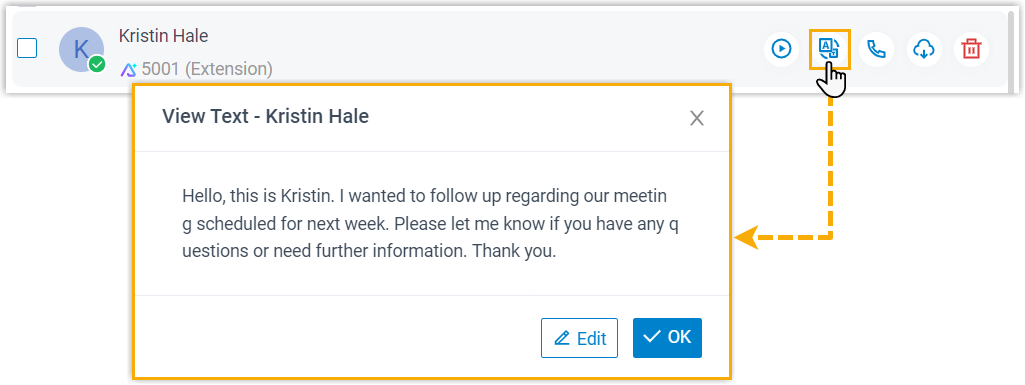
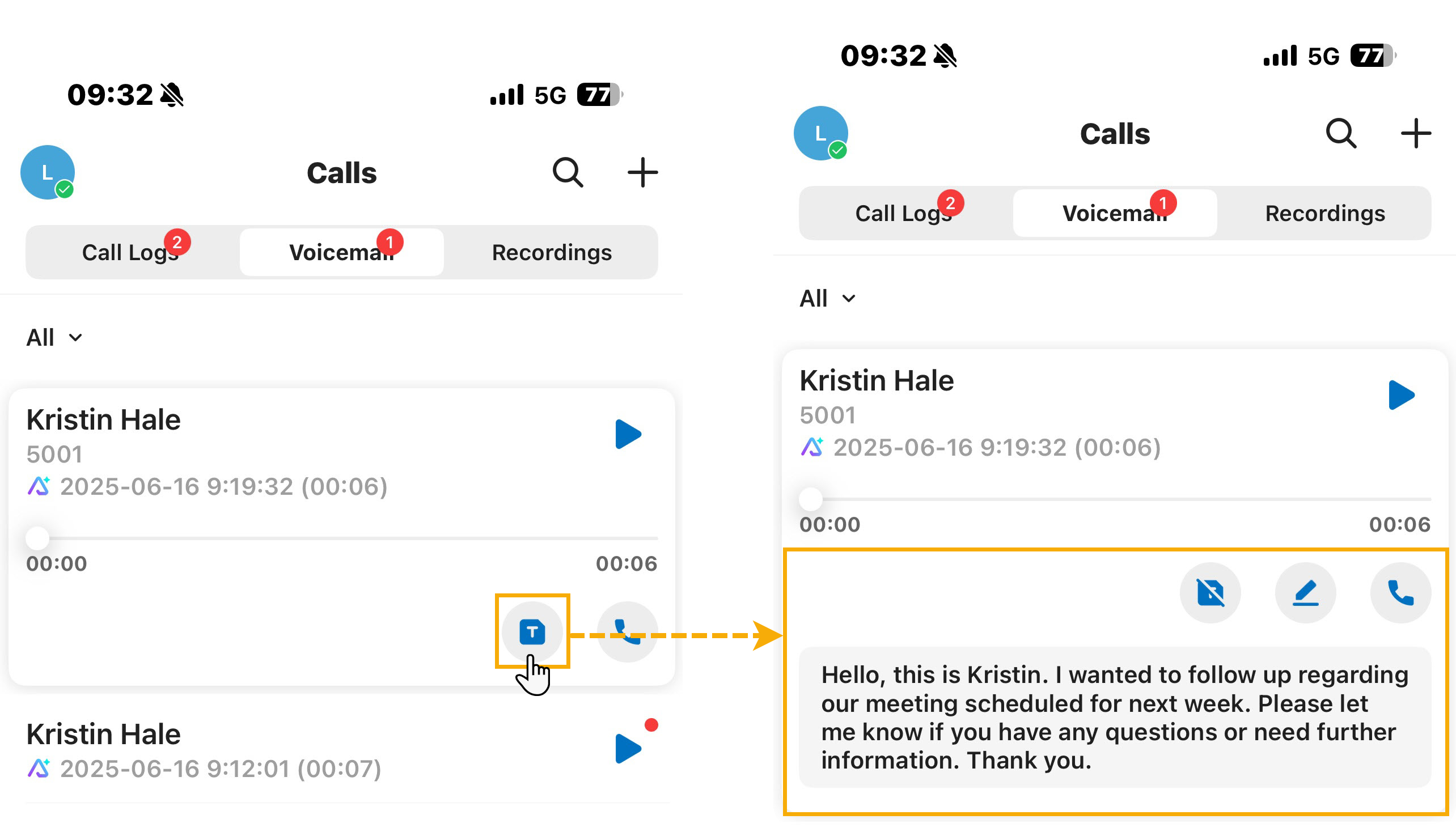
- Users can view the transcribed text for each voicemail on
their Linkus UC Clients (Path:
Voicemails). The transcribed
voicemail messages are marked with an icon
 . Note: Users can edit or refine the texts by clicking Edit (for Web/Desktop Client) or tapping
 (for Mobile
Client) to correct names, clarify information, or add
personal notes for future reference.
(for Mobile
Client) to correct names, clarify information, or add
personal notes for future reference.Linkus Web Client Linkus Desktop Client Linkus Mobile Client 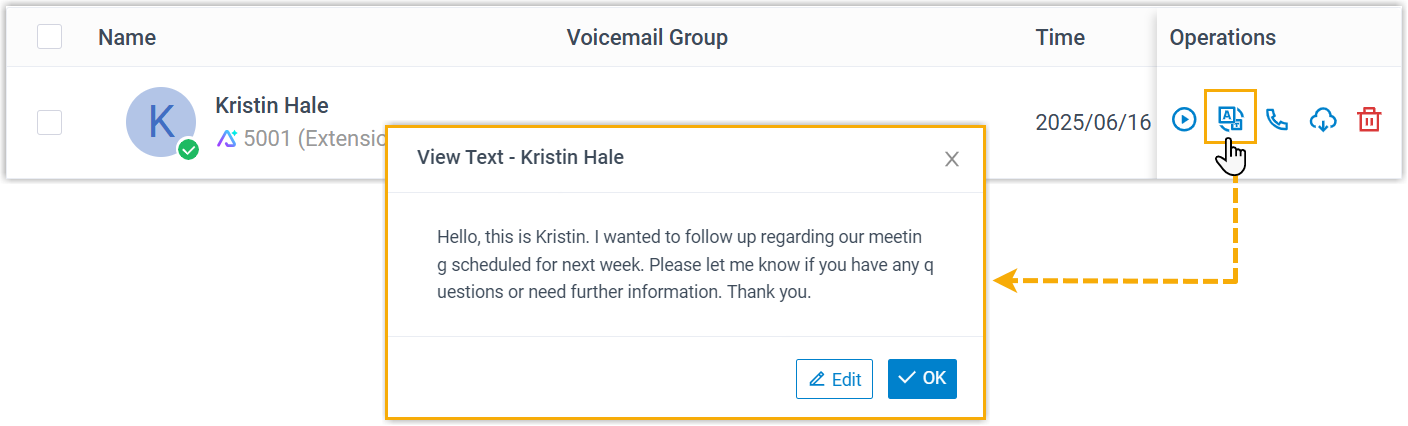
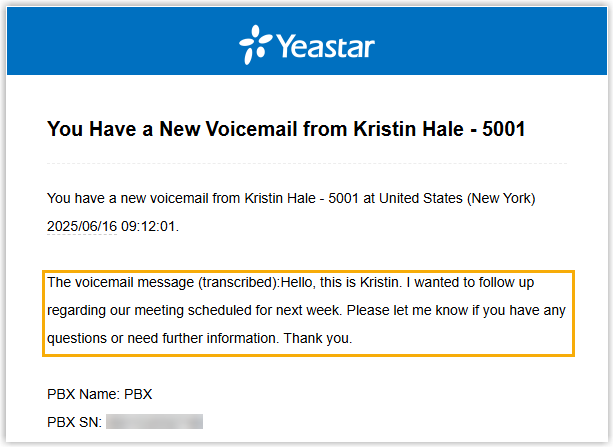
- Users can see the transcribed text included in the body of
the email notification for each received voicemail. Note: This method is only available when the following settings are enabled for the extension:
- Automatic Voicemail Transcription is enabled.
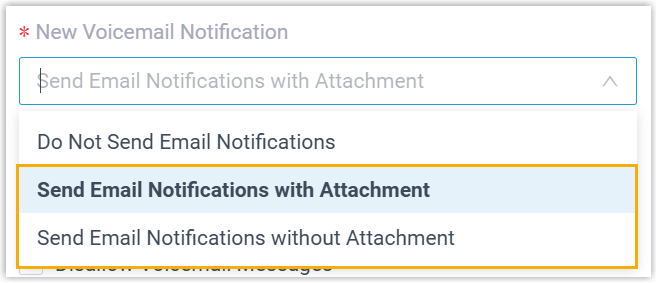
- Voicemail to Email feature is enabled
(Path: ).