Configure IAM Access for SBC Proxy Servers
To deploy a High Availability (HA) architecture for your SBC Proxy Servers, you need to create a dedicated service account and configure the necessary IAM access permissions to enable automated failover.
Background information
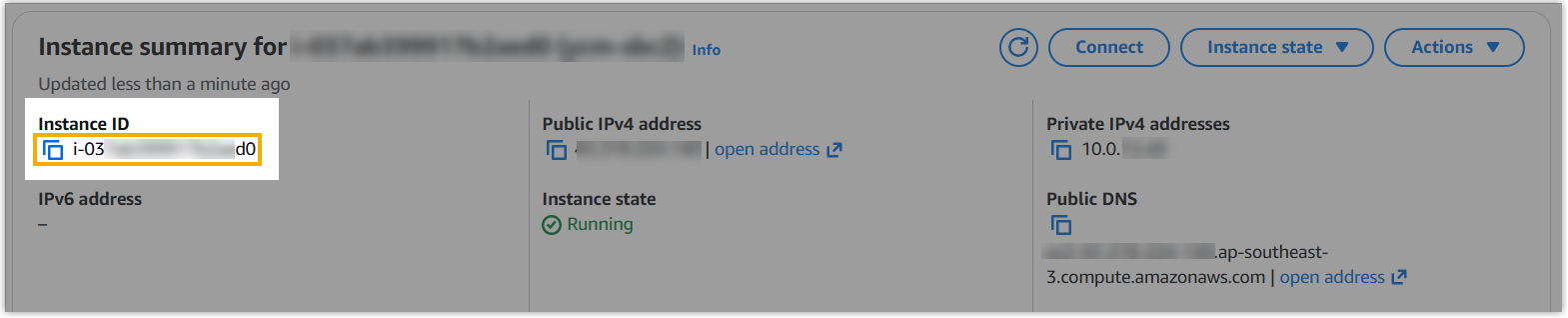
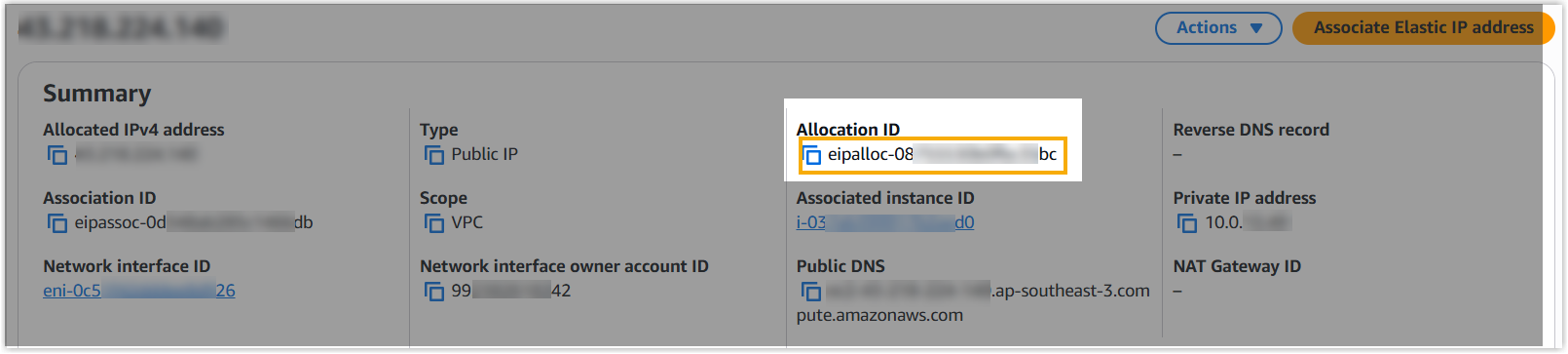
The high availability of SBC Proxy Servers is achieved through a failover mechanism that automatically switches the Elastic IP (EIP) between primary and backup server instances. To enable this automated process, you must create a dedicated IAM user with specific permissions, and provide its access key pair to Yeastar Support for assistance in configuring the HA functionality. The system will then use these credentials to automatically perform EIP switching and traffic redirection in the event of a failure, ensuring service continuity without manual intervention.Procedure
Create a custom IAM policy
Create a custom IAM policy that allows querying Elastic IP and server instance status, and performing IP address association and disassociation operations.
- Log in to AWS IAM Console.
- On the left navigation pane, go to .

- At the top-right corner, click Create policy.
- On the Specify permissions page, configure the
required permission policy.
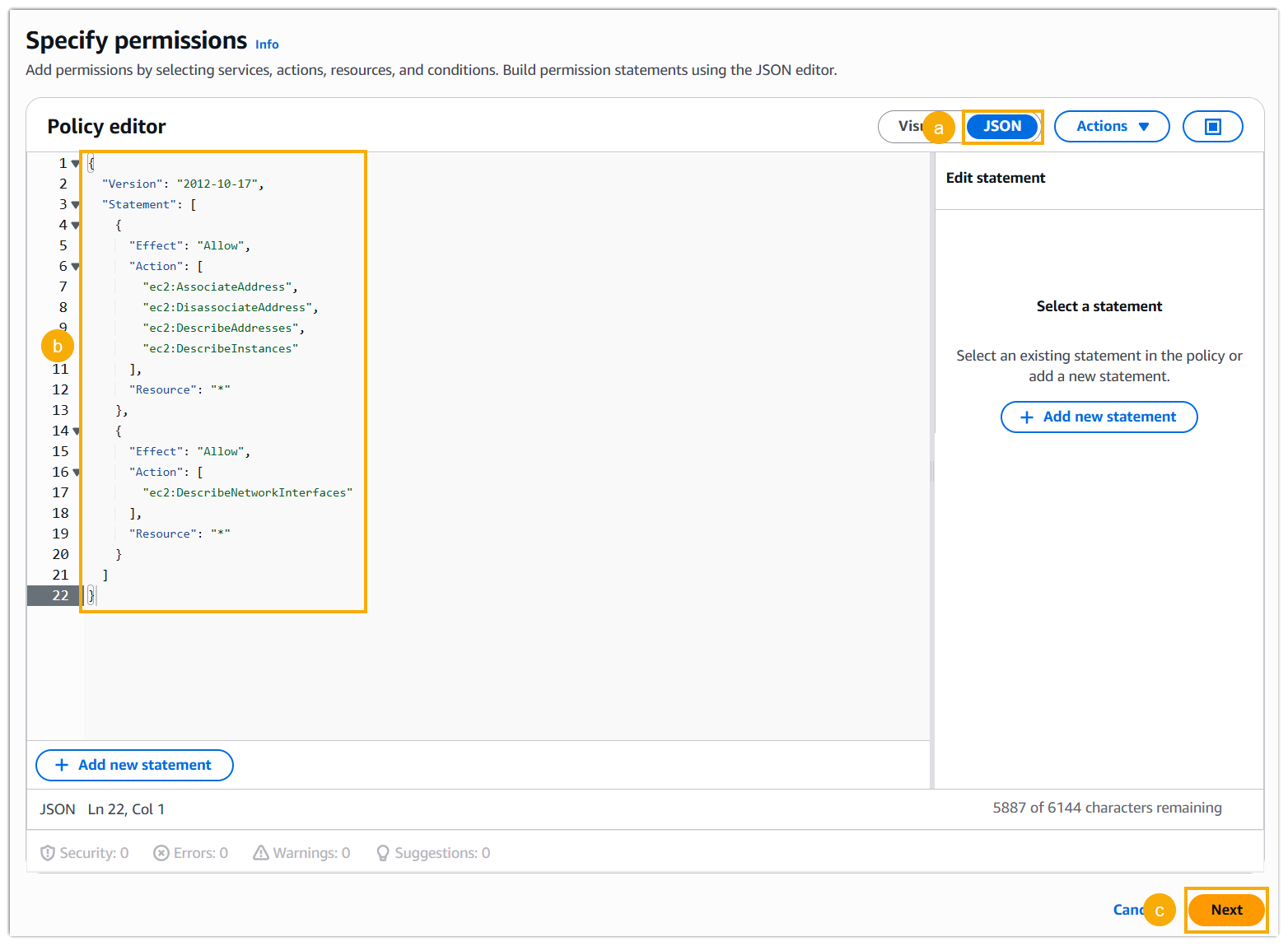
- Select the JSON tab.
- Copy and paste the following content to completely replace
the default template.
{ "Version": "2012-10-17", "Statement": [ { "Effect": "Allow", "Action": [ "ec2:AssociateAddress", "ec2:DisassociateAddress", "ec2:DescribeAddresses", "ec2:DescribeInstances" ], "Resource": "*" }, { "Effect": "Allow", "Action": [ "ec2:DescribeNetworkInterfaces" ], "Resource": "*" } ] } - Click Next.
- On the Review and create page, do as follows.
- In the Policy details, specify a policy name
to help you identify it, and enter a description as needed.
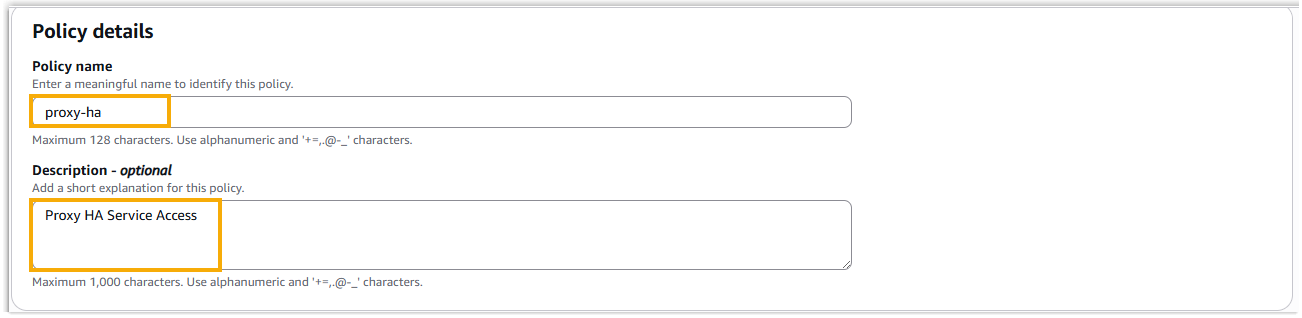
- Retain the other default settings.
- At the bottom-right corner, click Create
policy.
The policy is successfully created and displayed in the Policies list.
- In the Policy details, specify a policy name
to help you identify it, and enter a description as needed.
Create an IAM User and attach the policy
Create a dedicated IAM service account and attach the custom policy defined in the previous step to grant it the necessary permissions.
- On the left navigation pane, go to .
- At the top-right corner, click Create user.

- On the Specify user details page, do as
follows:
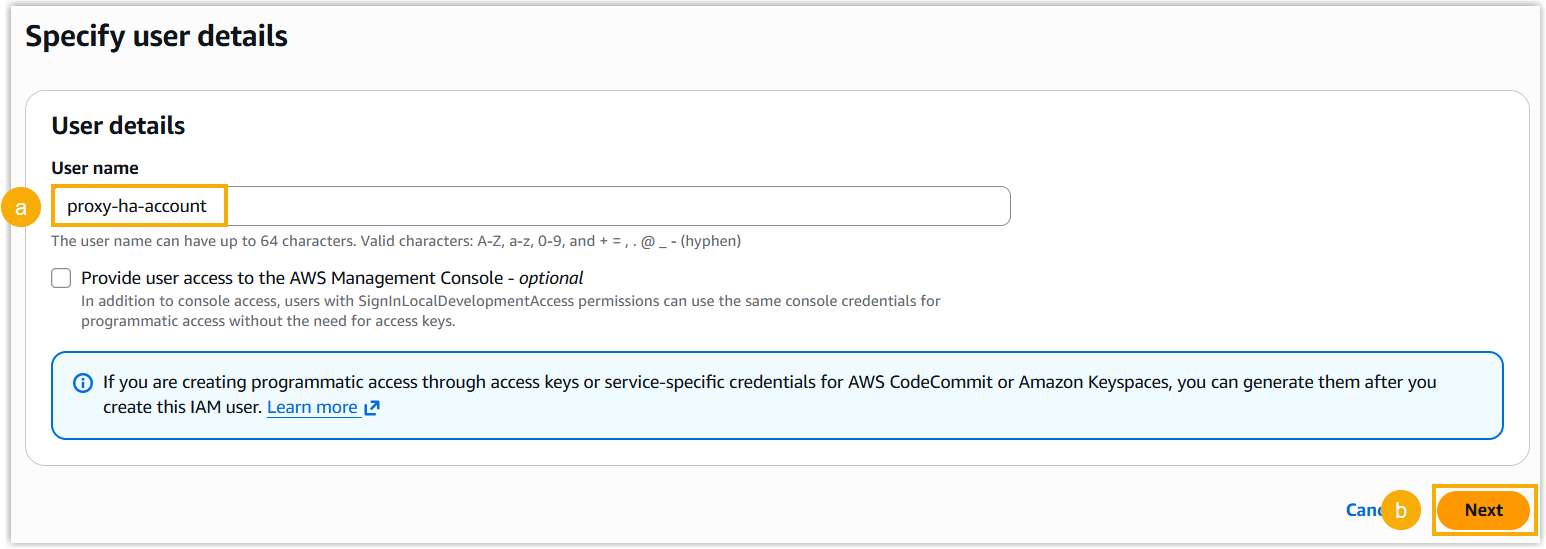
- In the User name field, enter a name to help you identify the user.
- At the bottom-right corner, click Next.
- Set permissions for the IAM user.
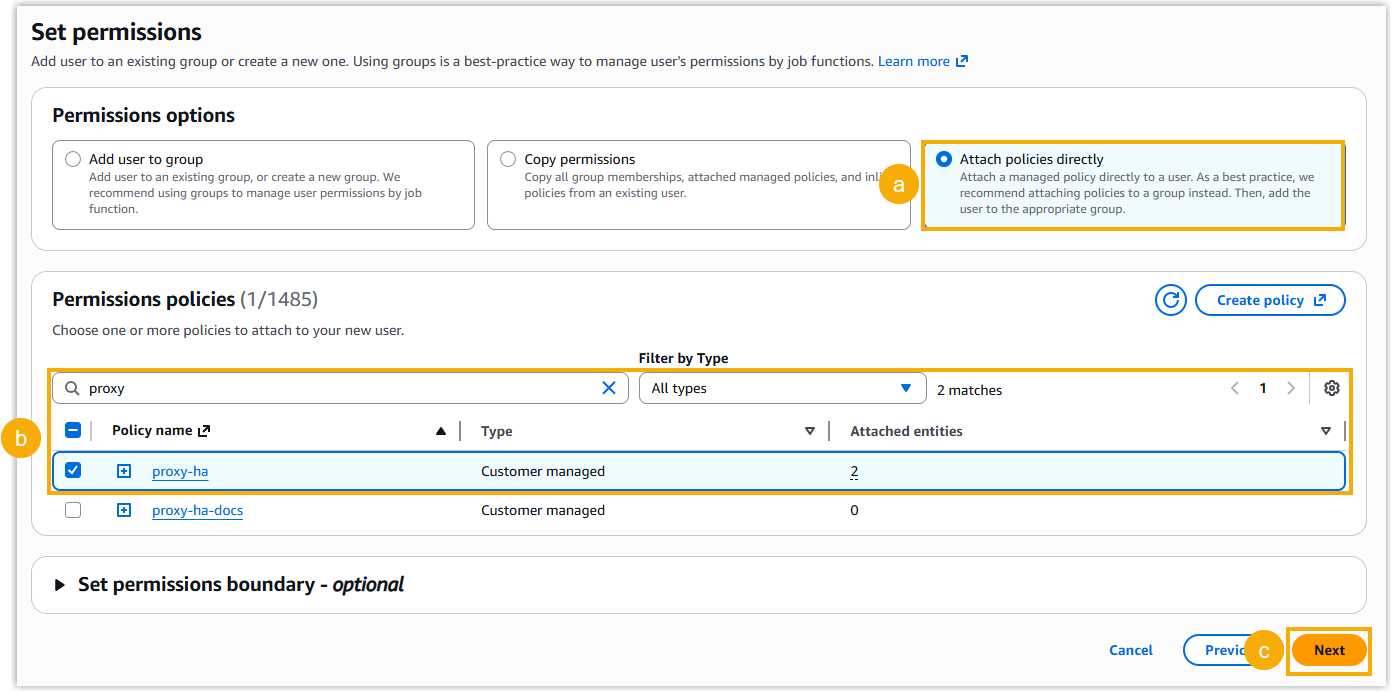
- In the Permission options section, select Attach policies directly.
- In the Permissions policies section, search and select the policy you have created.
- At the bottom-right corner, click Next.
- On the Review and create page, review the
IAM user settings, and click Create user to
proceed.
The IAM user is successfully created and displayed in the Users list.
Generate access key pair for the user
Generate an access key pair for the service account. This key pair will be used for secure, automated access to your specified AWS resources during SBC Proxy High Availability failover events.
- In the User list, click the user you have
created.
You are redirected to the user details page.
- In the Summary section, click Create
access key in the Access key
field.

- Do as follows to generate an access key pair.
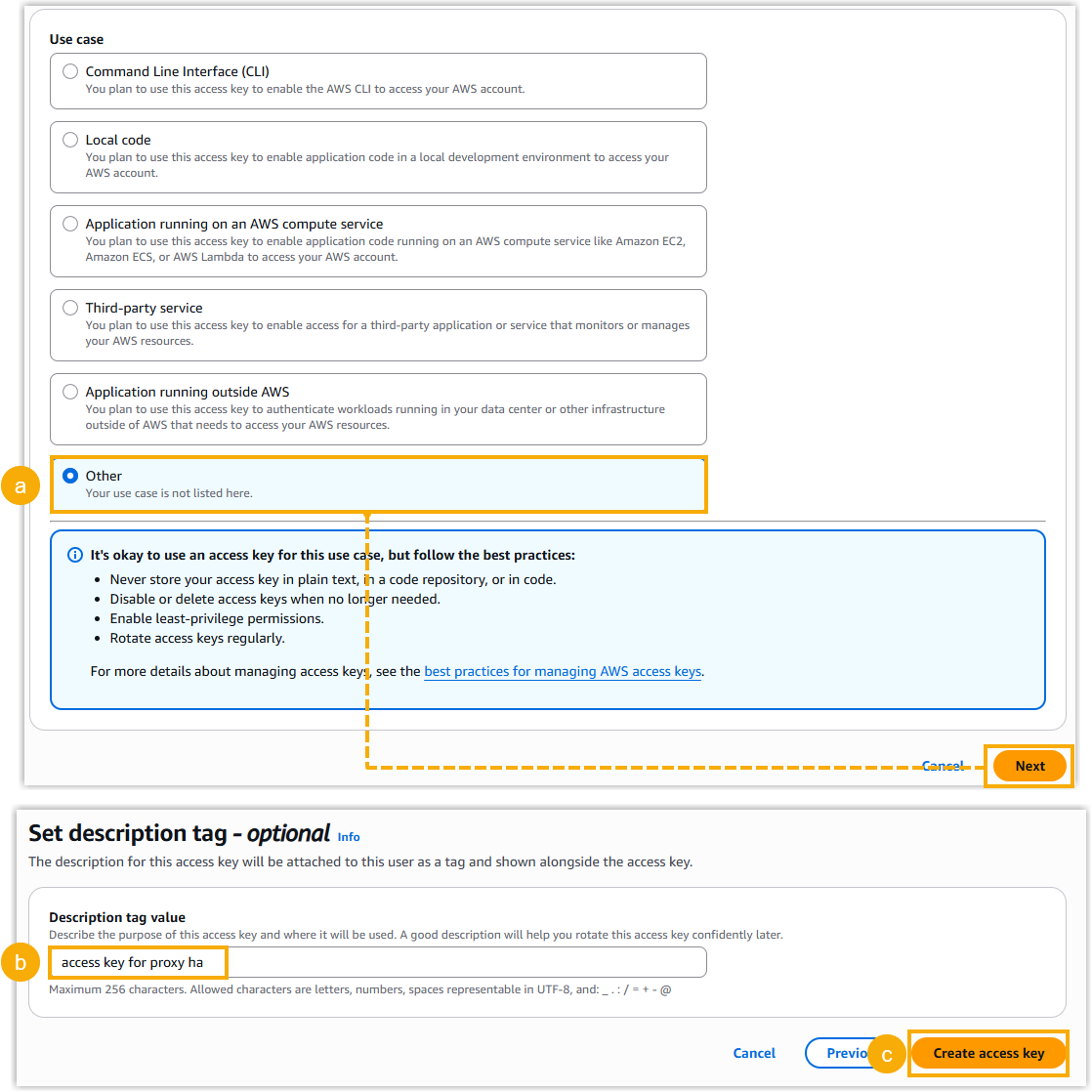
- In the Use case section, select Other, then click Next.
- Optional: In the Description tag value, enter a brief description for the access key pair.
- Click Create access key.The access key is generated successfully.Note: The secret access key is displayed only once on this page. You must download and securely save it before leaving this page, as you will not be able to view or retrieve it again.
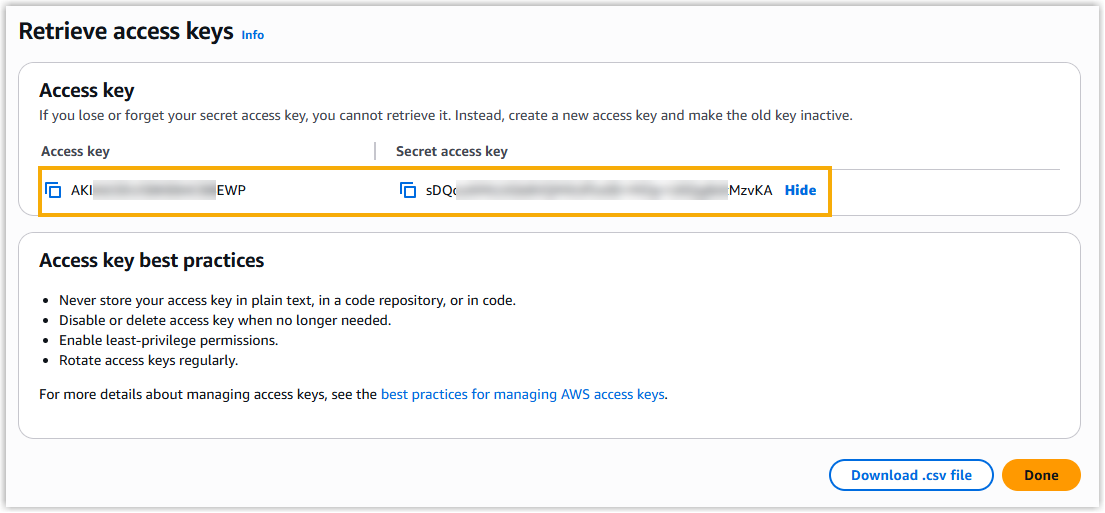
- On the Retrieve access keys page, click
Download .csv file.
A CSV file containing the access key is downloaded to your local computer.
- Click Done to exit the current page.
Result
You have successfully configured the necessary IAM access for SBC Proxy Server High Availability.
What to do next
To proceed with the configuration, provide the deployment environment details along with the following SBC Proxy Server High Availability-specific information to Yeastar Support, who will then facilitate the final deployment and configuration.
| Category | Detail |
|---|---|
| Instance information (for both Primary and Secondary servers) |
|
| Deployment region |
|
| Authentication credentials |
|