Configure AI Voicemail Transcription with OpenAI Service
Yeastar P-Series PBX System supports AI voicemail transcription powered by OpenAI Speech to Text service, converting audio in voicemail messages into readable text. This topic describes how to configure AI voicemail transcription with the third-party service on the PBX.
Requirements
Yeastar P-Series PBX System should meet the following requirements:| Item | Requirement |
|---|---|
| Firmware | 37.23.0.83 or later. |
| Subscription | Enterprise Plan or Ultimate Plan |
Prerequisites
| Item | Prerequisites |
|---|---|
| PBX network access | Make sure the Yeastar P-Series PBX System can access
api.openai.com to use OpenAI Speech to Text
service.Note:
You can verify domain accessibility on the PBX (Path: ). If the PBX can not access the domains, go to to configure the PBX network. |
| Third-party service account | Prepare an OpenAI account with sufficient transcription minute quotas for OpenAI Speech to Text service, and obtain the username and password. |
Procedure
Step 1. Create an API key for OpenAI Speech to Text service
To securely access the OpenAI Speech to Text service from the PBX, you must create an API key on OpenAI Platform first for the service API request authentication.
- Log in to OpenAI Platform using your OpenAI username and password, go to API Keys.
- At the top-right corner of the API key list, click Create new secret key.
- In the pop-up window, create a new API key.
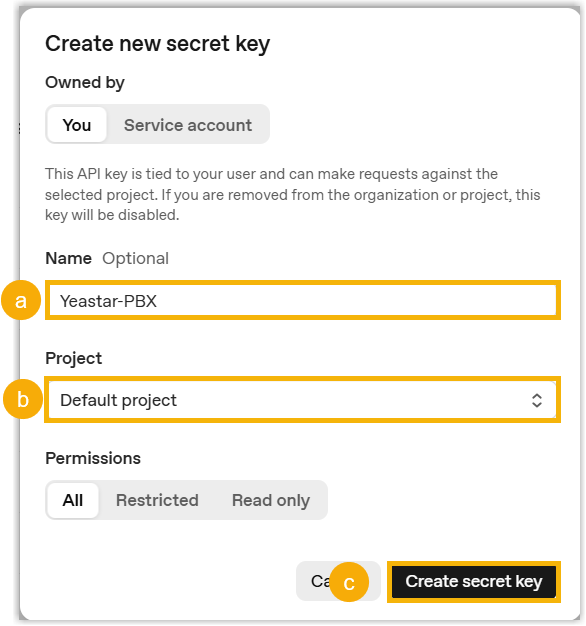
- In the Name field, enter a name to identify the API key.
- In the Project drop-down list, select the desired project.
- Keep the default All permission, and click Create
secret key.
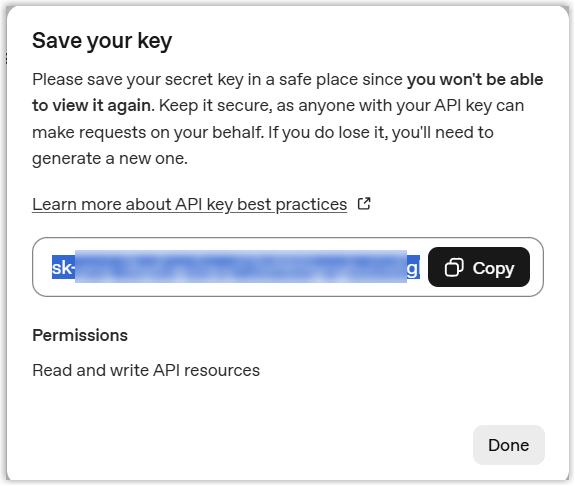
A pop-up window appears, displaying the generated API key.
-
In the pop-up window, click Copy to copy the API key and save it for later use.
Step 2. Configure AI voicemail transcription on the PBX
After you create an API key for OpenAI Speech to Text service, you need to configure corresponding settings on the PBX to establish a connection with the service.
- Log in to PBX web portal, go to .
- Turn on the switch of Voicemail Transcription.
- Configure AI voicemail transcription service.
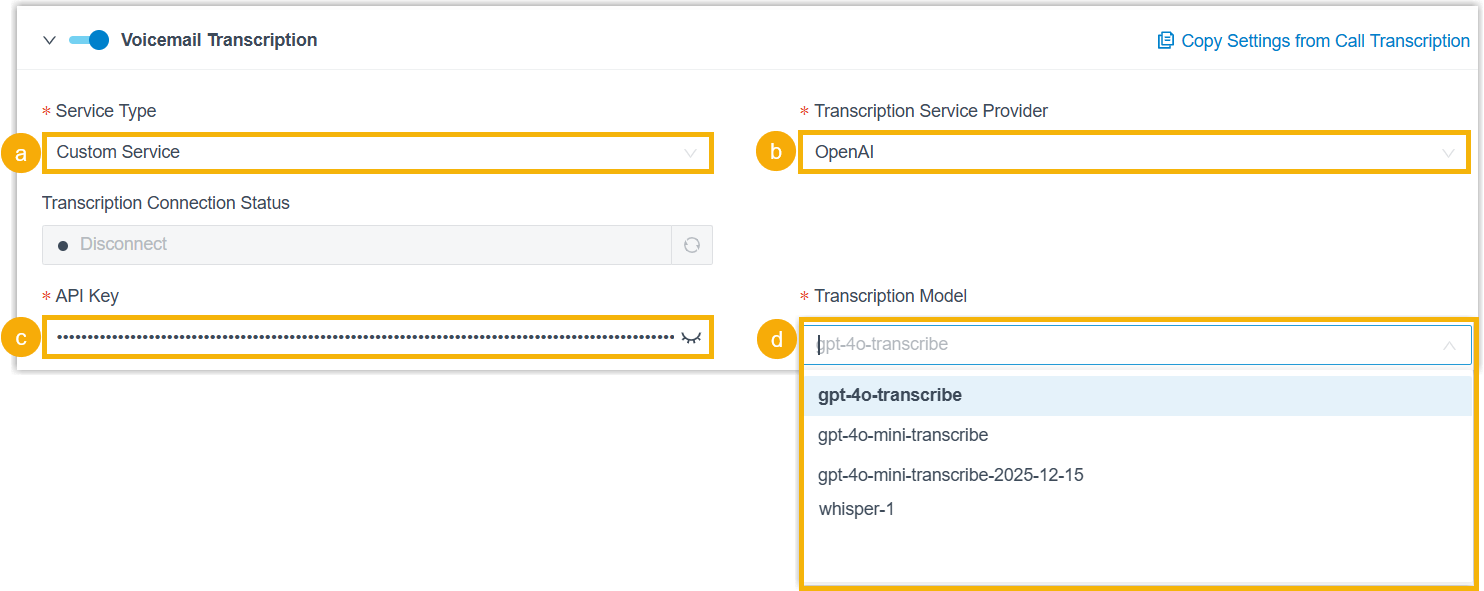
- In the Service Type drop-down list, select Custom Service.
- In the Transcription Service Provider drop-down list, select OpenAI.
- In the API key field, paste the API key created on OpenAI platform.
- In the Transcription Model drop-down list, select your preferred transcription model supported by OpenAI Speech to Text service. For details on the differences between the transcription models, see the list of OpenAI Realtime & audio models.
- In the Language drop-down list, select the desired language to be detected and transcribed for voicemail messages.
- In the
Extension Scope for This Feature section,
specify which extensions / extension groups / departments are
allowed to use voicemail transcription feature.
- All Extensions: All extensions can use this feature.
- Specific Extensions: Only selected extensions can use this feature.
- Click Save.
Result
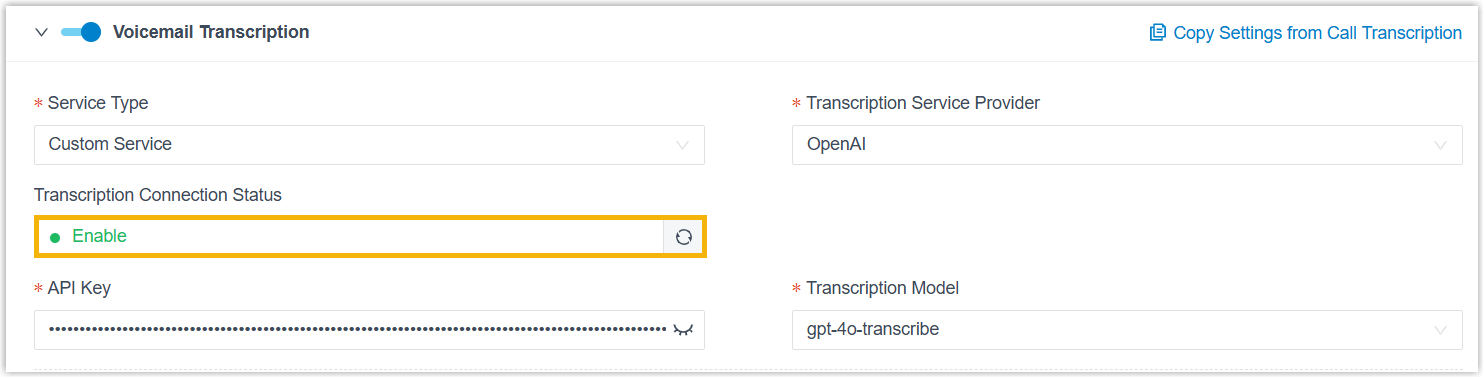
The Transcription Connection Status displays Enable, indicating that the AI voicemail transcription feature powered by OpenAI Speech to Text service is enabled. Both group and extension voicemail messages can be detected and transcribed into readable text in the specified language via the OpenAI service.