Configure Two-Factor Authentication using Authenticator Application
This topic describes how to configure Two-Factor Authentication (2FA) using an authenticator application on your mobile phone.
Prerequisites
You have installed one of the following supported authenticator applications on your mobile phone.
Procedure
- Log in to NovoOne Web Client, click your
account at the top-right corner, then go to .
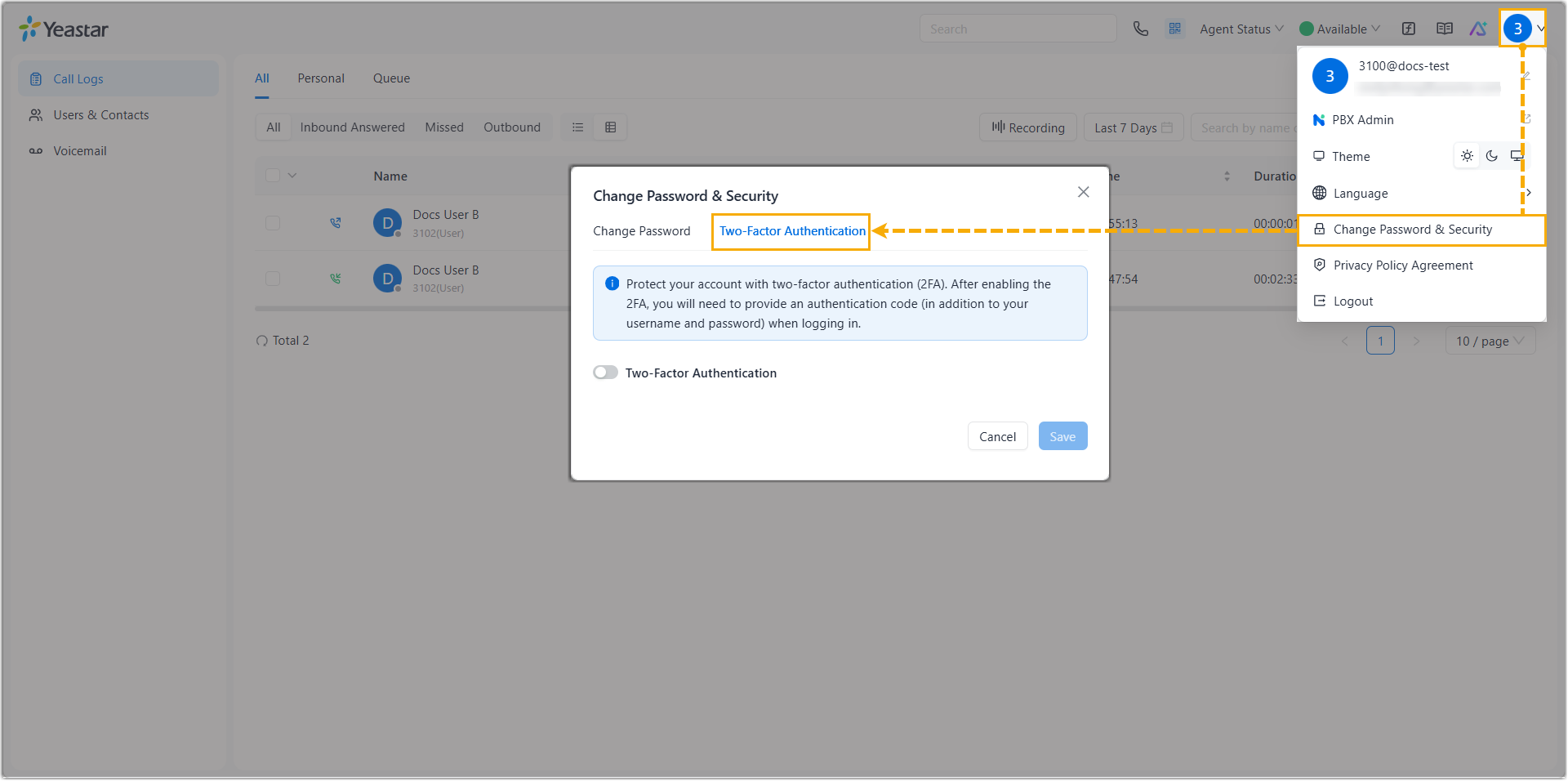
- Enable the 2FA feature.
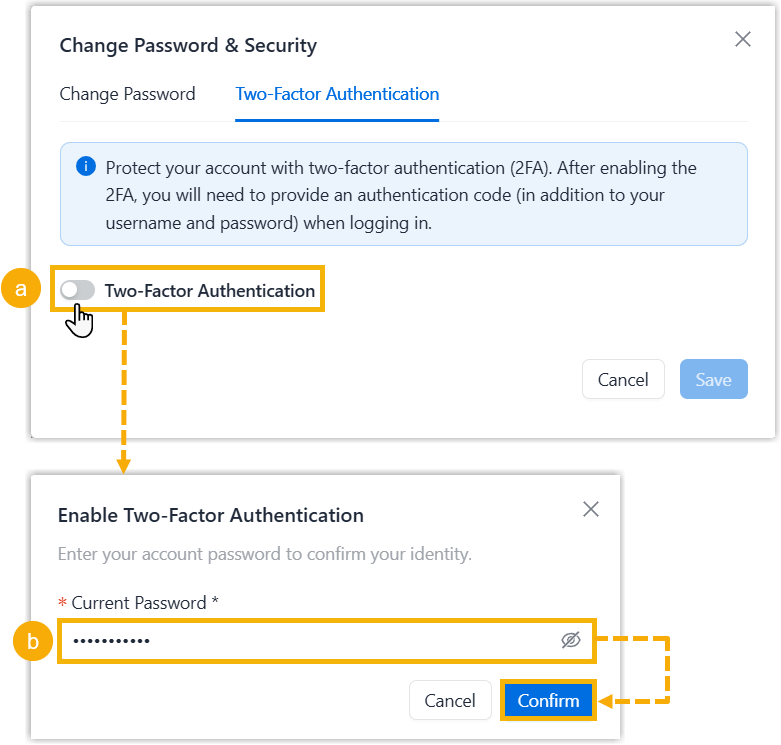
- Turn on the switch of Two-Factor Authentication.
- In the pop-up window, enter your account password and click Confirm to verify your operation.
- Select Authenticator App, then add your
account to the authenticator application via either of the following methods.
Method Instruction Scan QR Code to quickly add the account You can quickly add your account to the authenticator application by scanning the QR code provided by NovoOne Web Client. - On your mobile phone, open the authenticator application, and select to scan QR code.
- Scan the QR code shown on NovoOne Web Client.
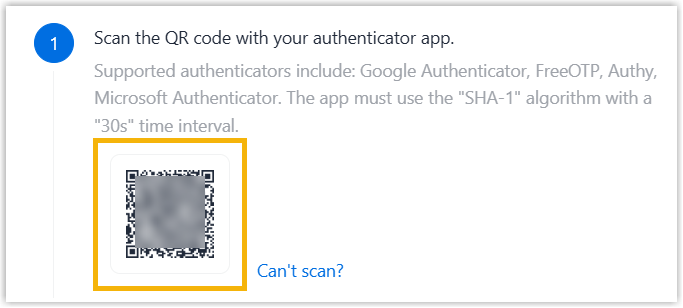
Your account is added to the application automatically, a 6-digit authentication code is shown.
Manually add the account In case you can not scan QR code, you can manually add your account and enter the secret key provided by NovoOne Web Client. - On NovoOne Web Client,
click Can't scan? beside
the QR code.
The system will generate a secret key, note it down for later use.
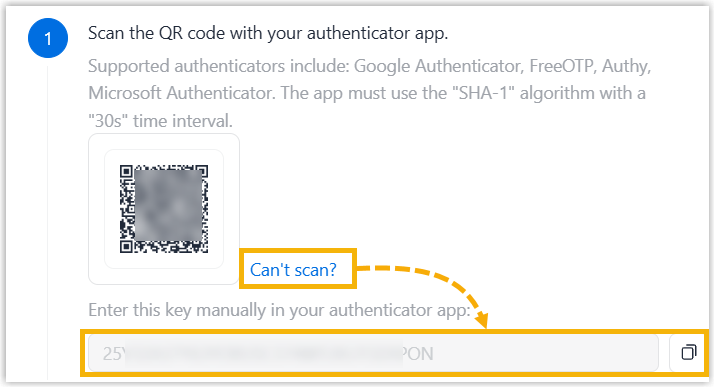
- On your mobile phone, open the authenticator application, and select to manually add an account.
- Enter the relevant information, and paste the
secret key.Note: If you need to complete more configurations for the secret key, you should set SHA1 as the algorithm for TOTP protocol, and set to generate 6-digit code with an interval of 30 seconds.
Your account is added to the application, a 6-digit authentication code is shown.
- On NovoOne Web Client, enter the 6-digit code in the Enter verification code field.
- Click Save.
Result
The webpage prompts a message "2FA enabled successfully". Next time you log in with your account credentials, you will need to enter an authentication code additionally.
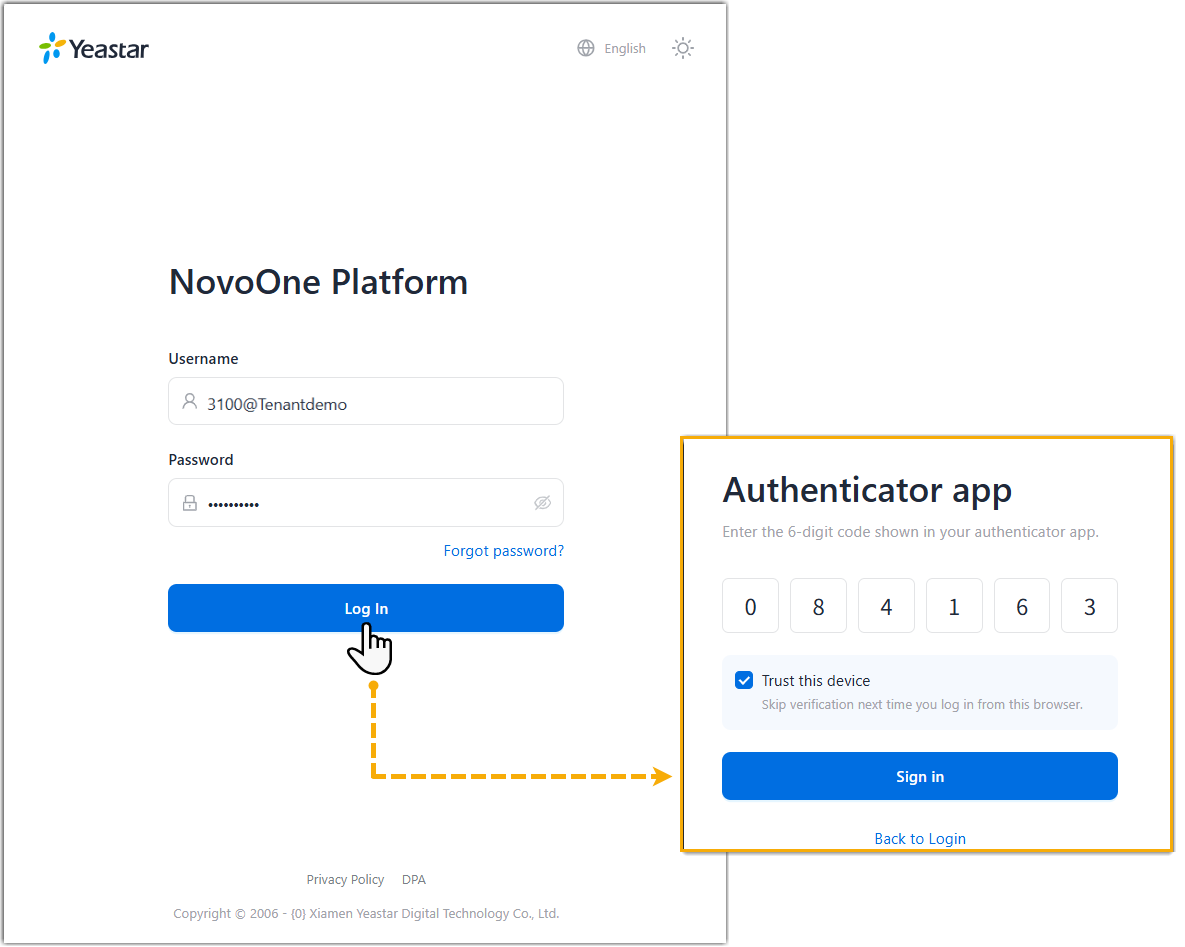
If you lose access to your two-factor authentication (e.g. you lost your device or could not receive authentication code via email), you can contact your system administrator to disable two-factor authentication for your account, so that you can directly log in with your account credentials.