View and Manage Call Logs
This topic describes how to view and manage your call logs, including personal call logs and queue call logs.
Procedure
- Log in to NovoOne Web Client.
- At the left navigation bar, go to Call Logs.
- Optional: Filter and find specific call logs.Tip: You can switch the view style by toggling between Table and List view.
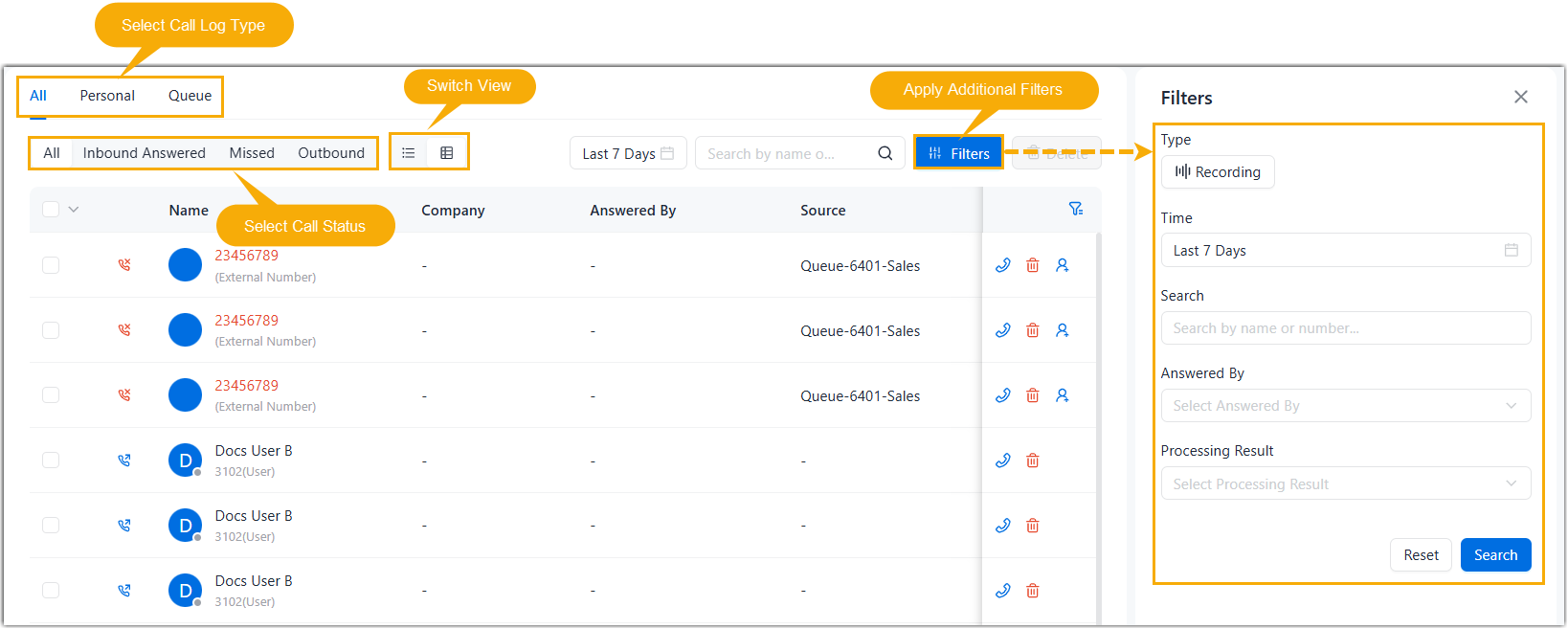
- Select the call log type you want to view.Note: This operation is available only if you are a queue agent.
Tab Description All Combined view of personal and queue call logs. Personal Your personal call logs. Queue Call logs from queues you belong to. - Filter call logs by call status.
Tab Description Inbound Answered Incoming calls that have been answered, including internal calls and inbound calls. Missed Incoming calls that you did not answer, as well as queue calls that were not picked up by any agent. Outbound Outgoing calls placed by the user to internal or external numbers. - Apply additional filters.
Filter Description Type Click to filter calls that have recordings. Time Filter calls by time range. Search Enter a keyword to search by name or number. Answered By Filter by the agent who answered the call. Note: This filter is available for queue call logs only.Process Result Filter queue calls by processing status. Note: This filter is available for queue call logs only.
- Select the call log type you want to view.
- In the call log list, view and manage the call logs as needed.Tip: You can directly place a call to the number by double clicking the specific call log.
Operation Instruction View details of a call log Click the desired call log to view the details. 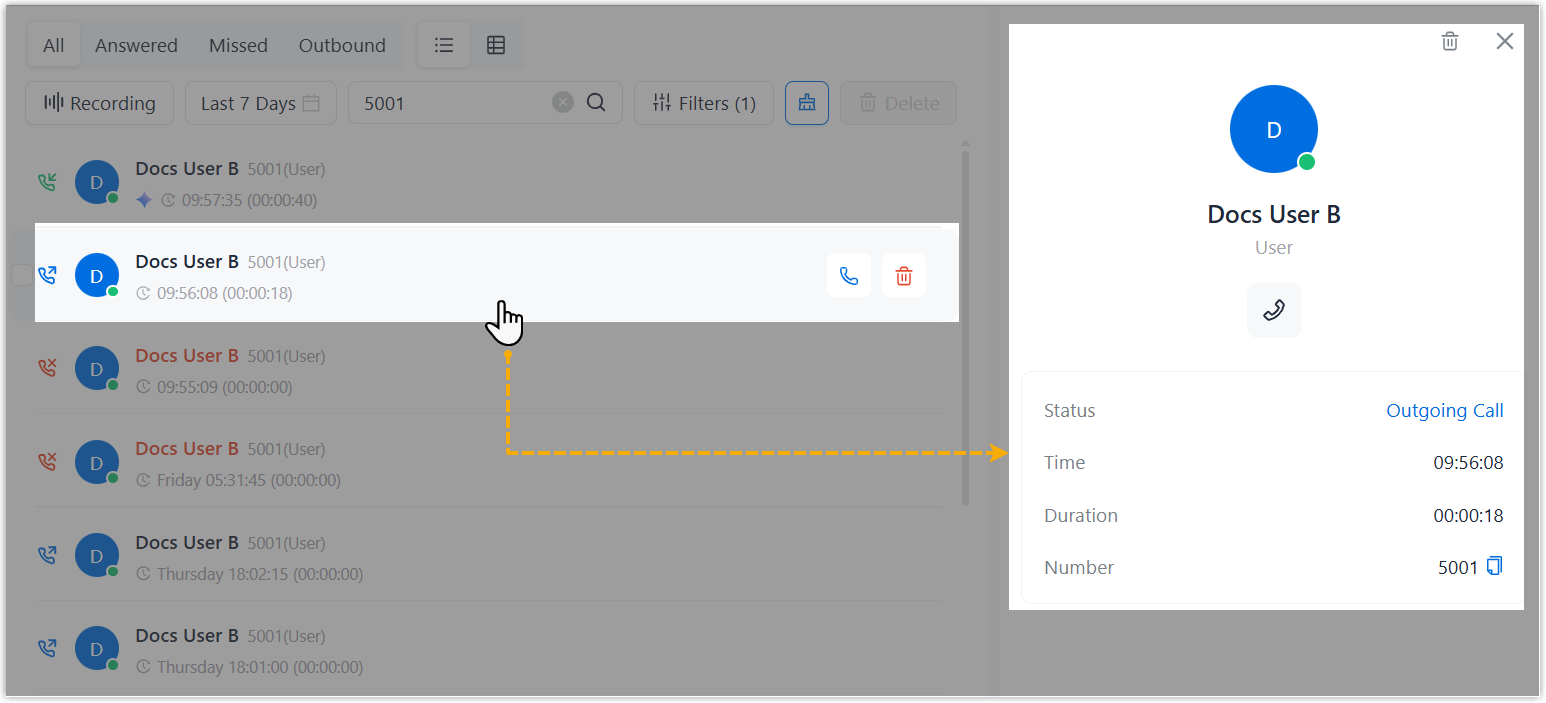
A panel appears at the right side, displaying the details of the call log.
View the transcript of a call If a call has been transcribed, the corresponding call log is marked with  . You can view the call
transcript and summary in the call log for a quick
review of the conversation.Note: This operation is available only if the system administrator has enabled the Call Transcription feature and granted you permission to use it.
. You can view the call
transcript and summary in the call log for a quick
review of the conversation.Note: This operation is available only if the system administrator has enabled the Call Transcription feature and granted you permission to use it.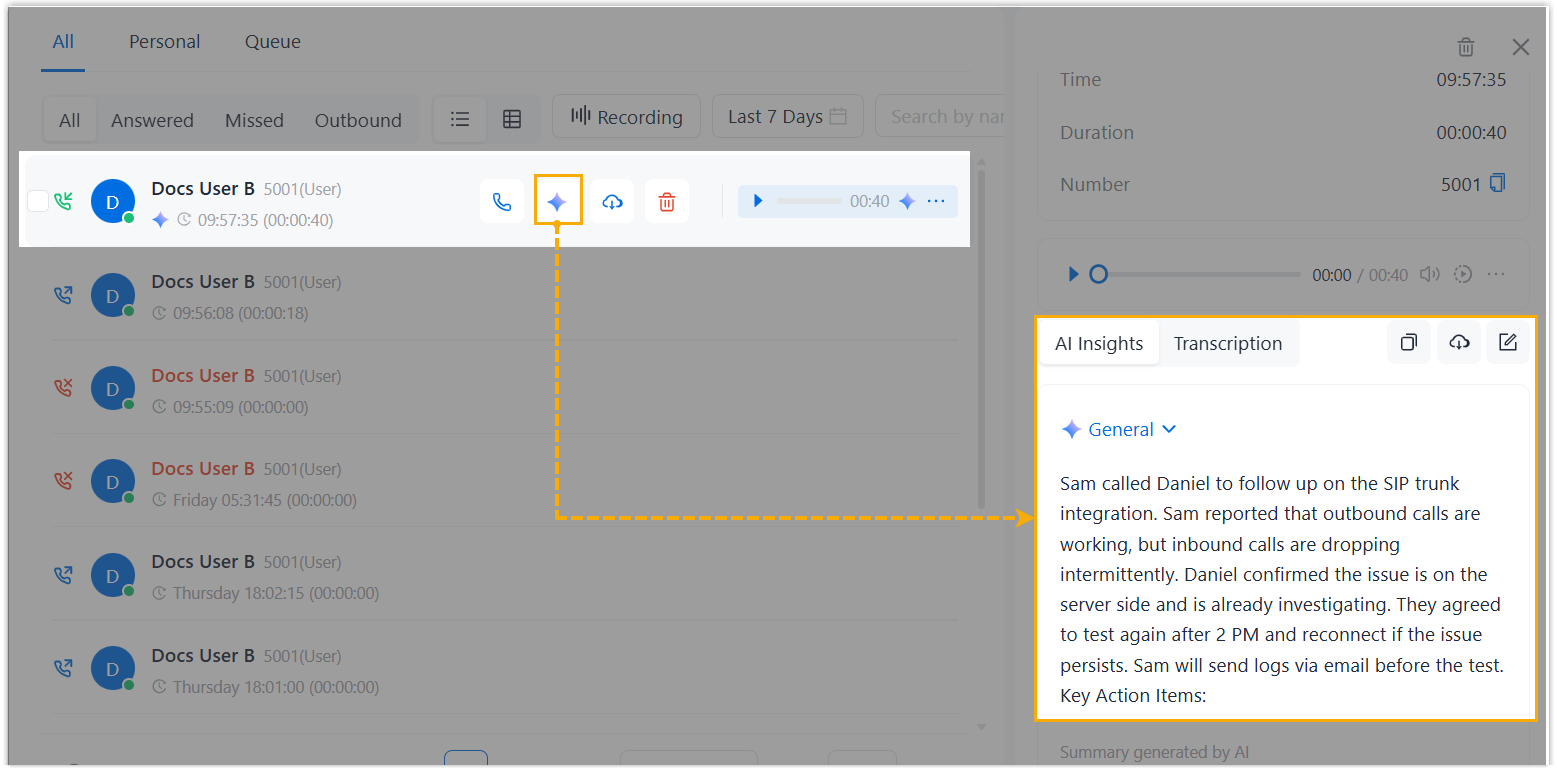
- Hover over the desired call log, then click
.
- In the details page, view the transcript in the Transcription tab and the summary in the Summarize tab.
Delete call logs To delete one or multiple call logs, do as follows: 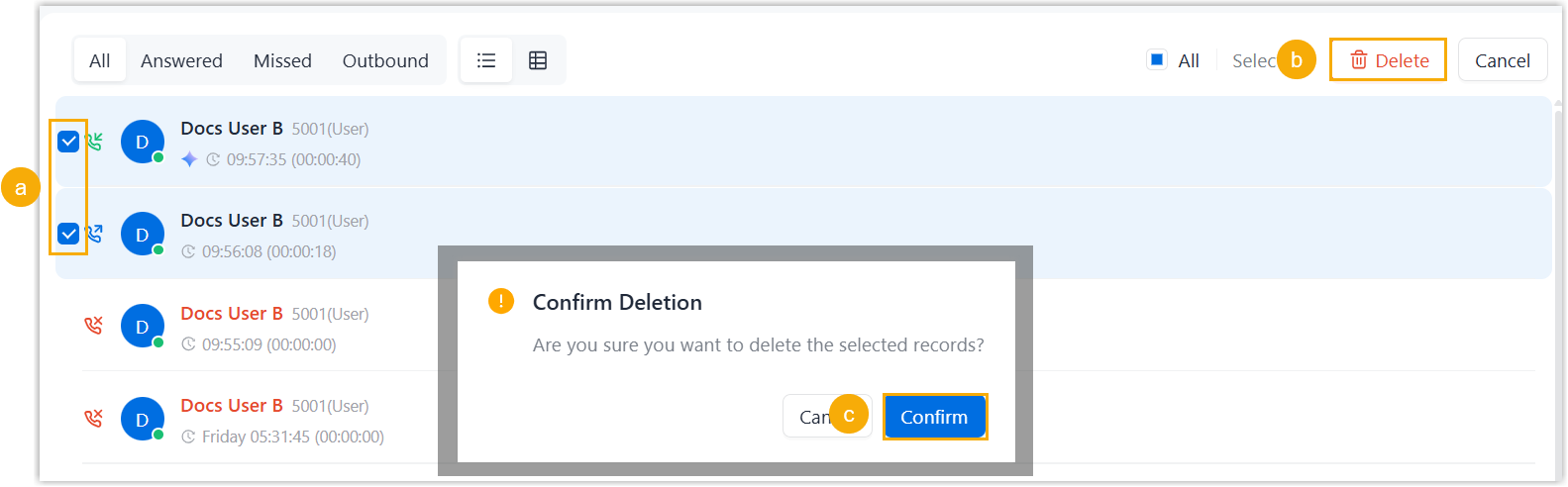
- Select the checkbox(es) of the desired call logs.
- At the top-right corner, click Delete.
- In the pop-up window, click Confirm.
Operations only for queue call logs Change the processing status of a missed queue call If you decide to handle a missed queue call, or you have handled it, you can change the processing status of the missed queue call. 
- Click the processing status beside the call log.
- In the drop-down list, select the desired one.
The processing status is changed; All agents can see the change, and check the operation record by hovering over the processing status.

- Hover over the desired call log, then click