Log in to NovoOne Web Client
This topic describes how to log in to NovoOne Web Client by manually entering login credentials.
Requirements
To ensure full functionality of NovoOne Web Client, please use
one of the following recommended browsers:
Note: For optimal
notification performance, avoid using the NovoOne Web Client
in private/incognito mode.
| Browser | Version Requirement |
|---|---|
| Chrome | Chrome 142 or later |
| Edge | Edge 142 or later |
| Opera | Opera 123 or later |
Prerequisites
Contact system administrator to obtain the following credentials:
| Credential | Description |
|---|---|
| Extension Account Credential | The extension number and the associated password of your account. |
| Company Account Name | The unique tenant name of your organization. |
| Login URL | The specific domain for your organization's system. |
Procedure
- Open a web browser, then enter the login URL in the address bar.
You are redirected to the login page.
- Enter the login credentials.
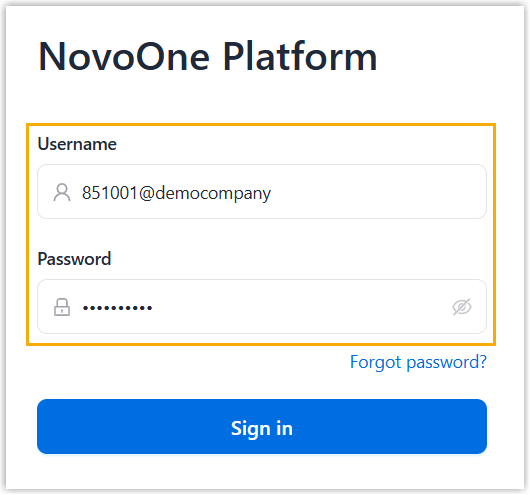
- Username: Enter the username in the
format of
<extension_number>@<company_account>. E.g.,851001@democompany. - Password: Enter your user password.
- Username: Enter the username in the
format of
- Click Log In.
- If you have set up two-factor authentication, do as follows to complete the
verification.
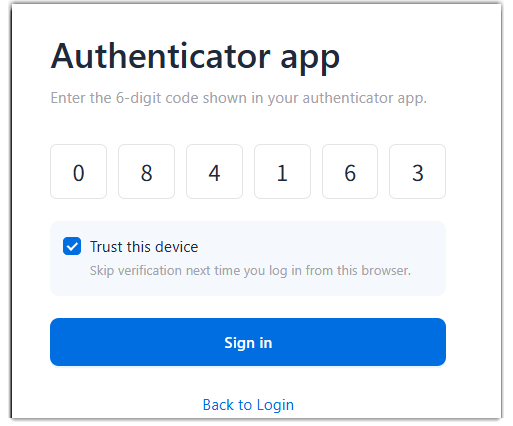
- Enter the authentication code provided by an authenticator application or email.
- Optional: Select the checkbox of Trust this
device.Note:
- For the device from which you log in most frequently, you can select the option to add it as a trusted device. In this way, you don't have to re-enter an authentication code with this device for the next 180 days.
- You can add up to 10 trusted devices. When the limit is reached, the NovoOne Web Client automatically removes the least recently used device.
- Click Sign in.