Change or Reset Your Password
You can change your account password on NovoOne Web Client to enhance account security, or reset it if you forget it.
Change password
- Procedure
-
- Log in to NovoOne Web Client.
- At the top-right corner, click your account, then go to .
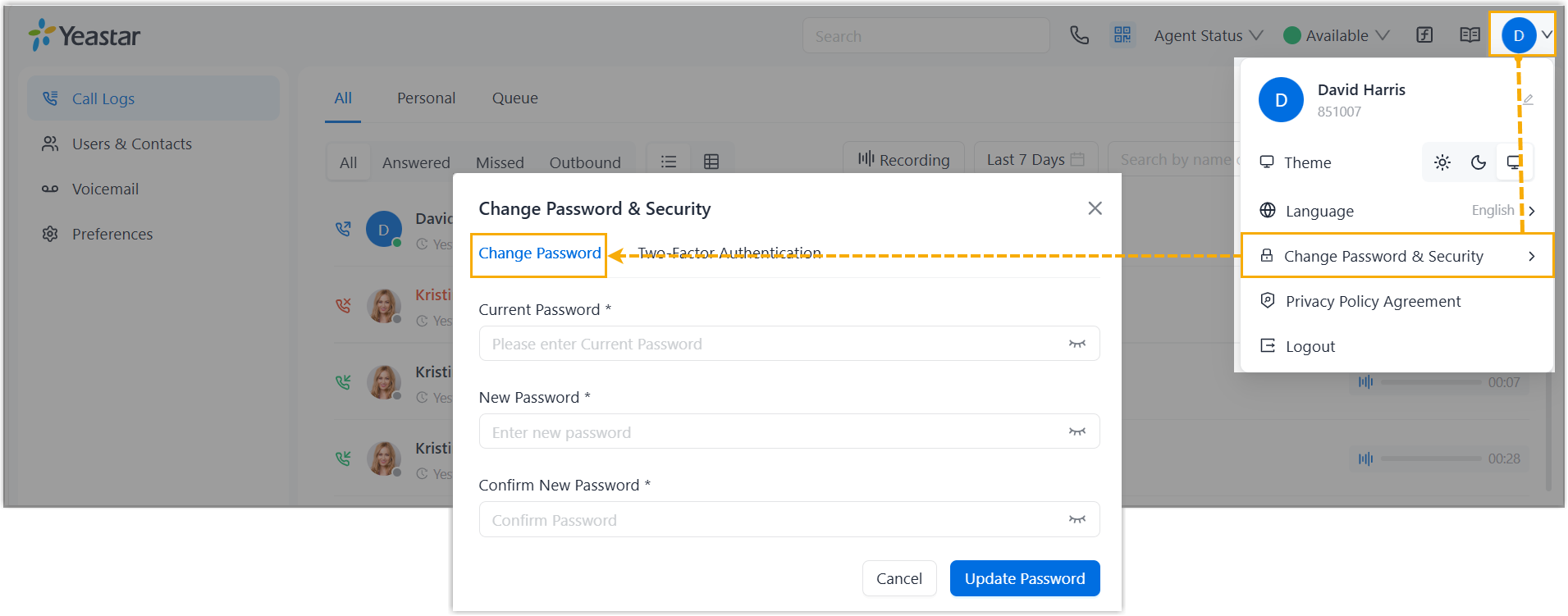
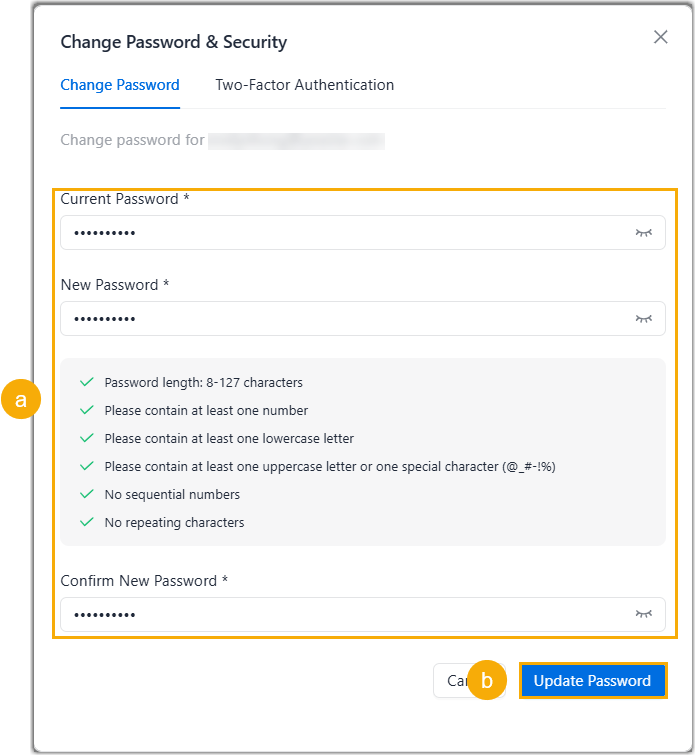
- In the pop-up window, set a new password, then click
Update Password.
- Result
-
The login password is changed, and your account is automatically logged out of the NovoOne Web Client.Note: The new password will be applied across the NovoOne clients.
- What to do next
-
Log in to the NovoOne Web Client with the new password.
Reset Password
- Requirement
- Your account has been associated with a valid email address.
- Procedure
-
- On the login page of NovoOne Web Client, click Forgot Password?.
- On the Reset Password page, do as
follows:
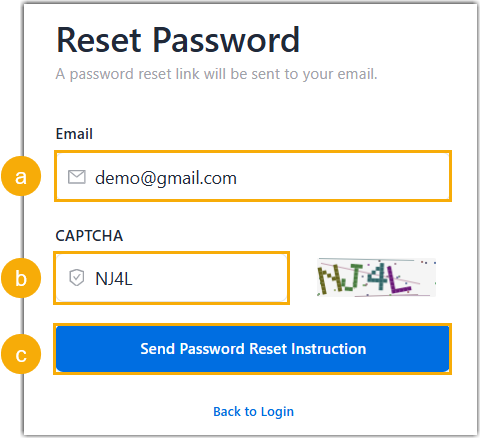
- Enter the email address associated with your account.
- Enter the captcha displayed on the screen.
- Click Send Password Reset
Instruction.
A password reset email is sent to the email address, containing a password reset link.
Note: The link is valid for 30 minutes and can be used only once.
- In your mailbox, open the email and click the password reset
link.
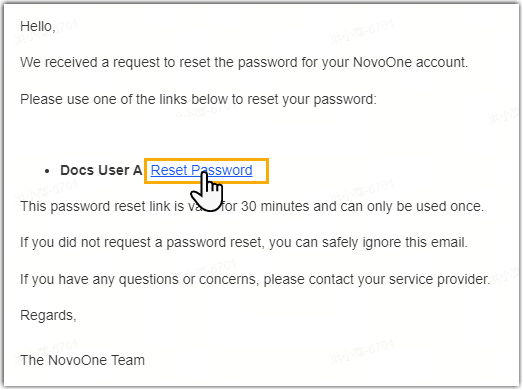
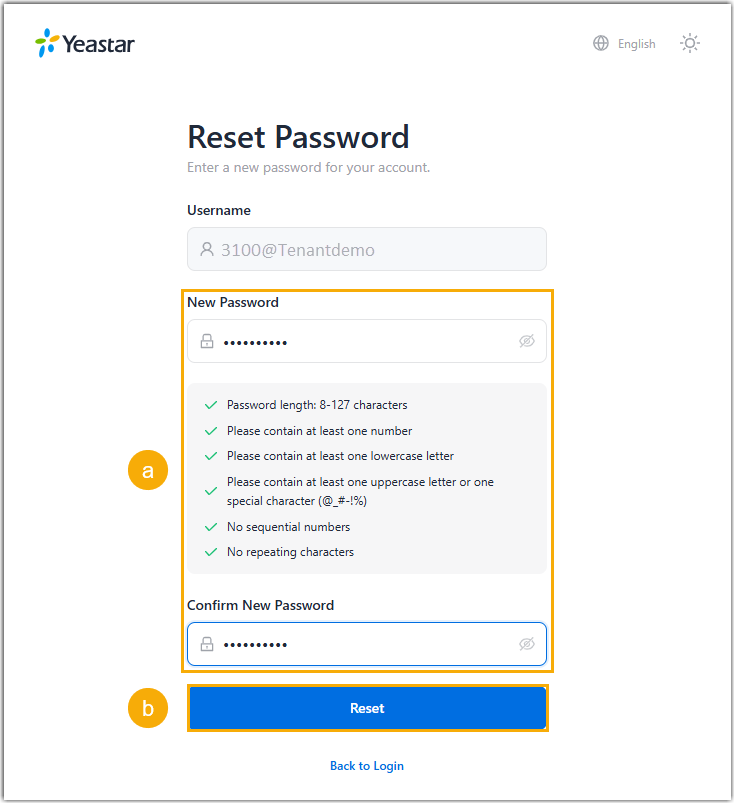
You are redirected to a Reset Password page.
- Enter your new password twice, then click
Reset.
- Result
- The login password is changed. The new password will be applied across the NovoOne clients.
- What to do next
-
Log in to the NovoOne Web Client with the new password.