View and Manage Recordings
This topic describes how to view and manage your call recordings on NovoOne Web Client.
Procedure
- Log in to NovoOne Web Client.
- At the left navigation bar, go to Call Logs.
- At the top of the call log list, click
Recording.

All call logs that have recordings are listed.
- In the list, manage the call recordings according to your needs.
Operation Instruction Play a call recording Listen to a recorded call to review what was discussed.

- Hover over the desired recording.
- Click
 to play.
 - Optional: Adjust the volume and
playback speed as needed.
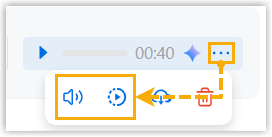
Download a call recording Save a copy to your computer for backup or offline access.

- Hover over the desired recording.
- Click
 .
.The call recording is downloaded to your computer in
.wavformat.
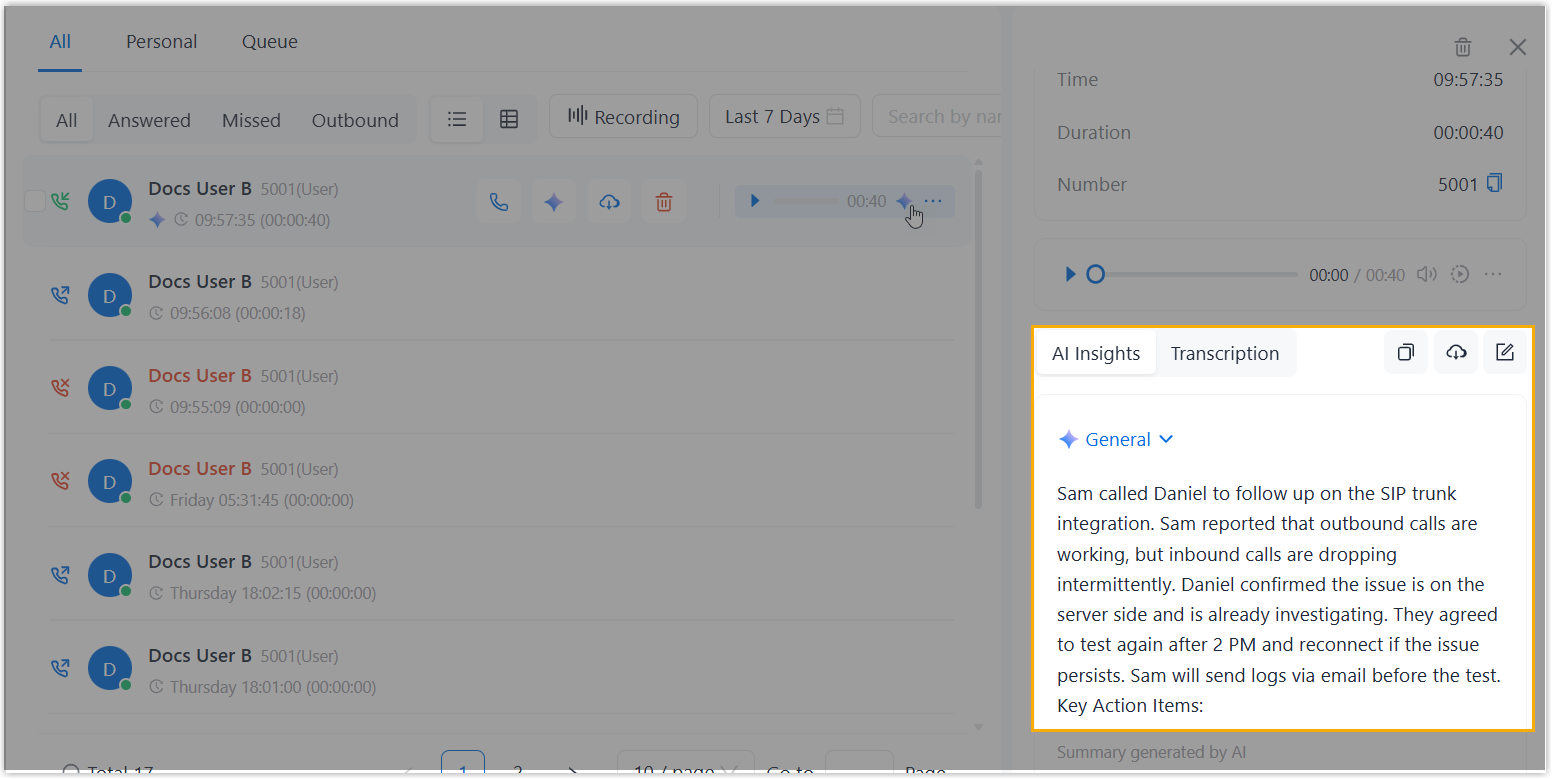
View the transcript of a call recording Read the call content in text format for quick review. Note: This operation is available only if the system administrator has enabled the Call Transcription feature and granted you permission to use it.
- Hover over the desired recording.
- Click
 .
.The call recording transcripts will replace the original call transcript and displayed in the details page of the corresponding call log.
Delete a call recording Remove unwanted recordings as needed.
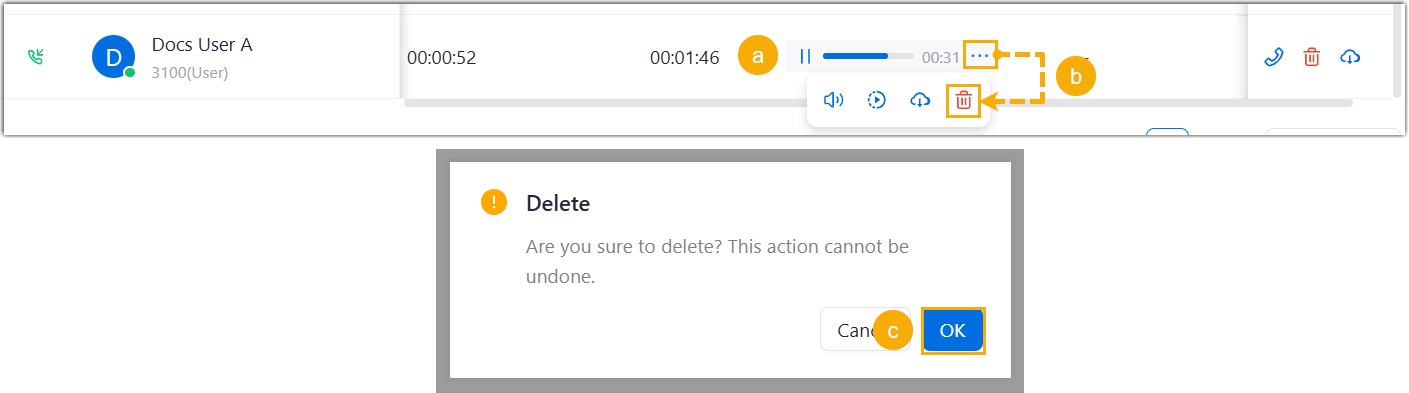
- Hover over the desired recording.
- Click
 , then click
 .
. - In the pop-up window, click
OK to delete the
recording.
The call recording is deleted across your NovoOne clients.