Manage AI Receptionists
This topic describes how to manage AI receptionists, including duplicating, editing, and deleting them.
Edit an AI receptionist
You can edit an AI receptionist's basic information and its agent settings.
Note: To change assigned knowledge bases or skills, see Assign and Unassign Knowledge Base for an AI Receptionist and
Enable Skills for an AI Receptionist.
- Log in to NovoOne Tenant portal, go to .
- In the AI receptionist list, click the desired receptionist.
- Edit the information or setting in the Agent tab and Settings tab as needed.
- Click Save.
Duplicate an AI receptionist
You can duplicate an existing AI receptionist to quickly create a new one with most
of the same configurations. This is useful when you need to set up multiple
receptionists with similar settings and make minor adjustments afterward.
- Log in to NovoOne Tenant portal, go to .
- In the AI receptionist list, click
 on the desired receptionist, then
select Duplicate.
on the desired receptionist, then
select Duplicate.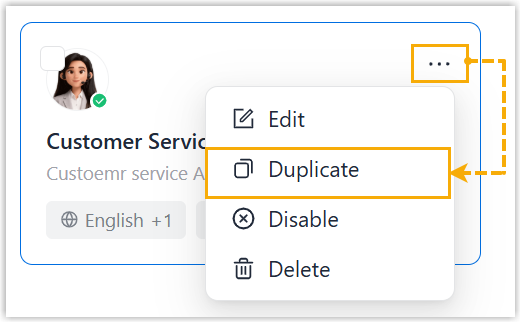
- In the pop-up window, enter the basic information for the AI receptionist.
- Click Duplicate.
A new AI receptionist is created with most of the original configurations duplicated. You can further adjust its settings as needed.
Activate or deactivate an AI receptionist
Activate or deactivate an AI receptionist. When activated, the receptionist answers
calls as configured. When deactivated, it stops answering calls but retains all
settings for future use.
- Log in to NovoOne Tenant portal, go to .
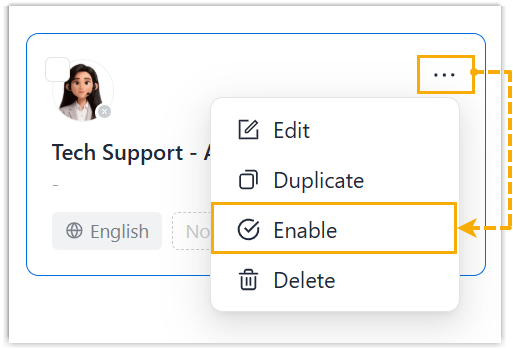
- In the AI receptionist list, click on the desired receptionist, then
select Enable or
Disable.
- In the pop-up window, click Confirm.
Delete AI receptionists
When you no longer need an AI receptionist to answer calls, you can permanently
delete it from the tenant.
Note: Deleting an AI receptionist
does not affect CDRs that were generated while the receptionist was
active.
- Log in to NovoOne Tenant portal, go to .
- In the AI receptionist list, delete one or multiple receptionists according
to your need.
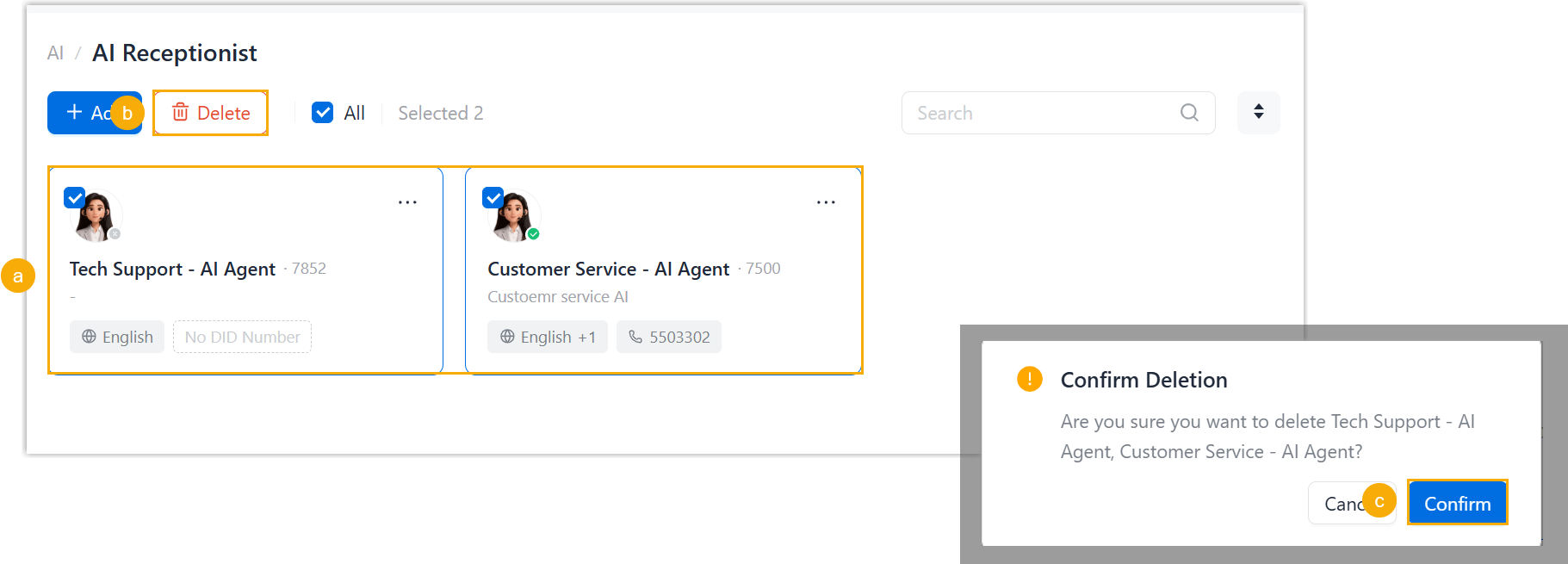
- Hover to select the checkbox(s) of desired AI
receptionists.Note: To delete all AI receptionists, select All.
- At the top of the list, click Delete.
- In the pop-up window, click Confirm.
- Hover to select the checkbox(s) of desired AI
receptionists.