Assign and Unassign Knowledge Base for an AI Receptionist
This topic describes how to assign and unassign knowledge base contents for an AI receptionist.
Assign knowledge base to an AI receptionist
Assign a knowledge base to an AI receptionist, so it can retrieve information from the uploaded FAQs, documents, and other contents to answer callers' questions accurately.
- Prerequisites
- You have added desired contents to the knowledge base.
- Procedure
-
- Log in to NovoOne Tenant portal, go to .
- Click the desired receptionist, then go to the Knowledge Base tab.
- Assign knowledge base contents.
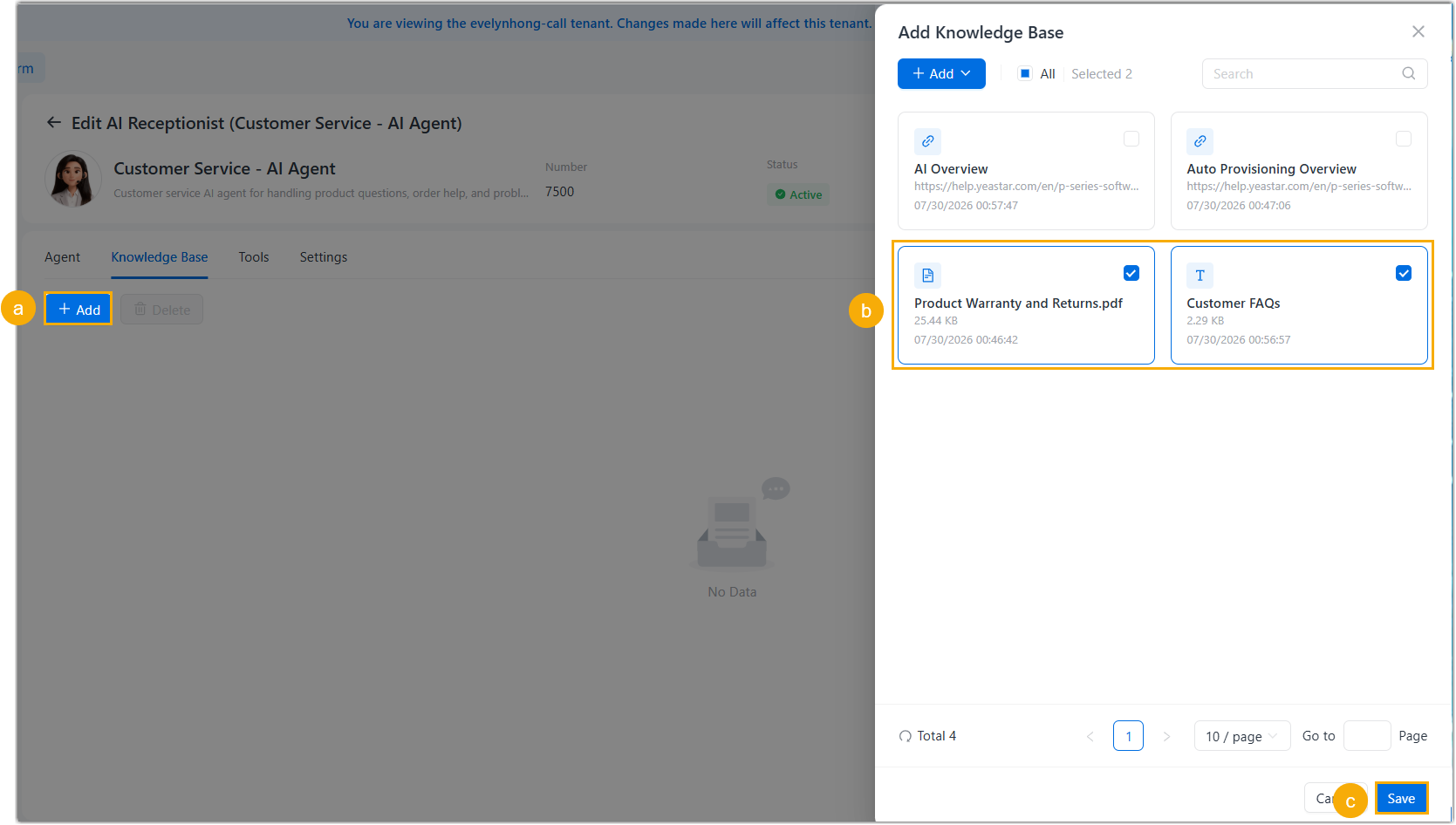
- Click Add.
A right panel appears, showing all content entries in the global knowledge base.
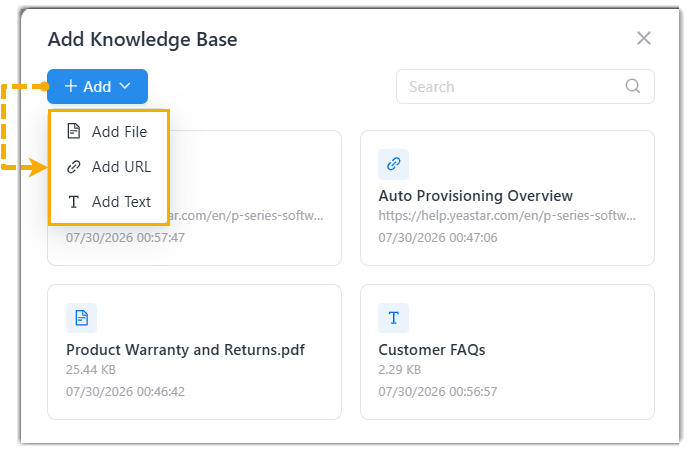
- Search for and select the desired content entries, then
click Save.Note: If you can not find the knowledge base content you need, you can directly add it on this page, and the uploaded content will be automatically synchronized to the global knowledge base.
- At the bottom of the right panel, click Save.
- Click Add.
- Result
-
The selected knowledge base content is assigned to the AI receptionist. The AI will reference the included information when answering caller questions.
Unassign knowledge base from an AI receptionist
Unassign specific knowledge base content when it is no longer needed for a specific AI receptionist.- Procedure
-
- Log in to NovoOne Tenant portal, go to .
- Click the desired receptionist, then go to the Knowledge Base tab.
- Unassign knowledge base content.
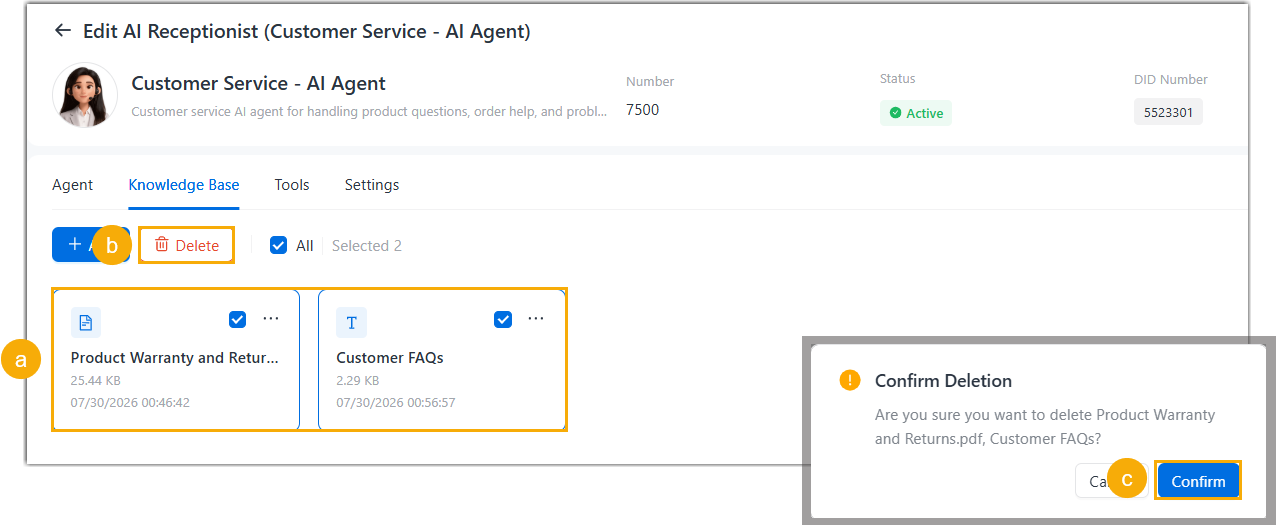
- Hover to
select
the checkbox(es) of the desired entries.Note: To delete all entries, select the checkbox of All.
- At the top of the list, click Delete and confirm the operation.
- In the pop-up window, click Confirm.
- Hover to
select
the checkbox(es) of the desired entries.
- Result
- The specified knowledge base contents have been
unassigned
from the AI receptionist.Note: This operation only removes the association and does not delete the content from the global knowledge base.