Manage an Ongoing Call
During an active call on NovoOne Web Client, you can manage the call using the control buttons on the screen, such as mute, hold, and end calls. This topic describes the available operations you can perform to the ongoing call.
Available call operations
| Operation | Instruction |
|---|---|
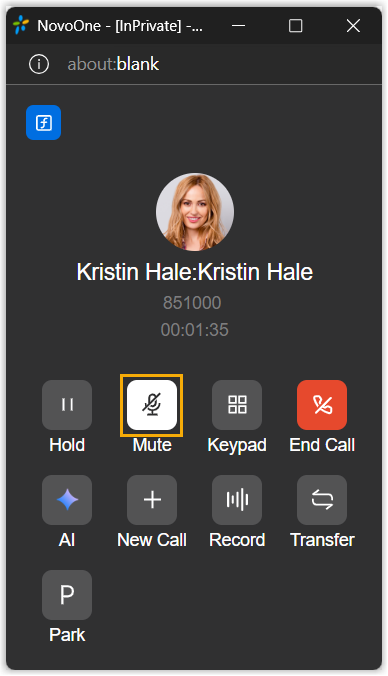
| Mute or unmute the call |
You can turn your microphone on or off to control whether the
other party can hear you.
|
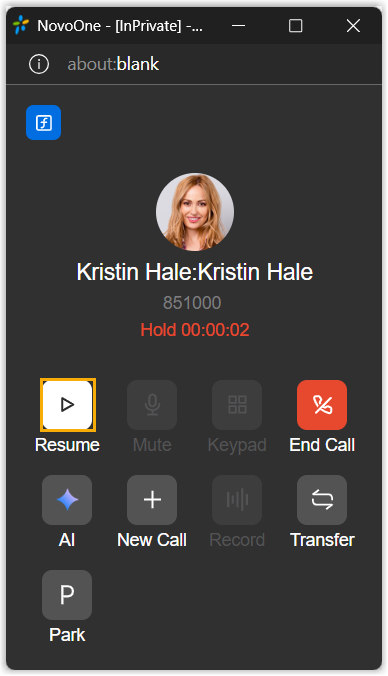
| Hold and resume a call | You can put an active call on hold to pause your
conversation, and resume the call when you are ready.
|
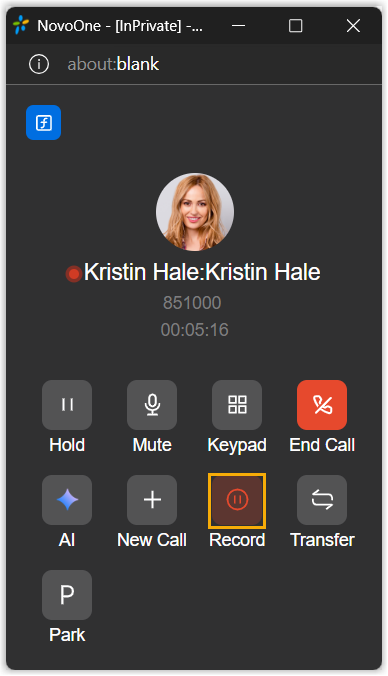
| Record a call | You can record calls and play back later to review and
confirm information. Note: This operation is available only
when system administrator has granted you the permission
to record calls.
|
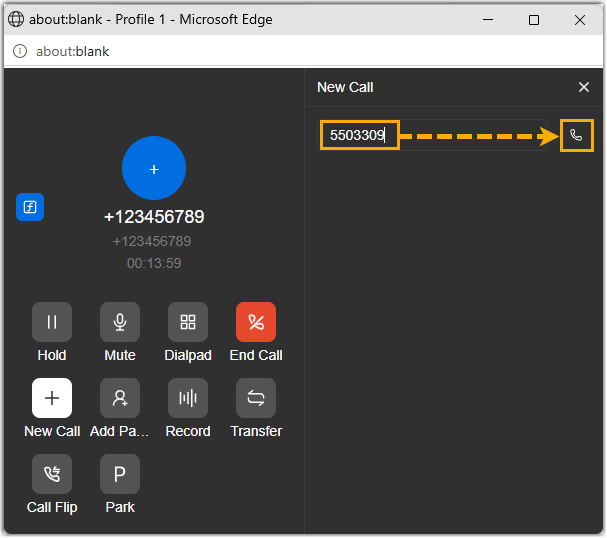
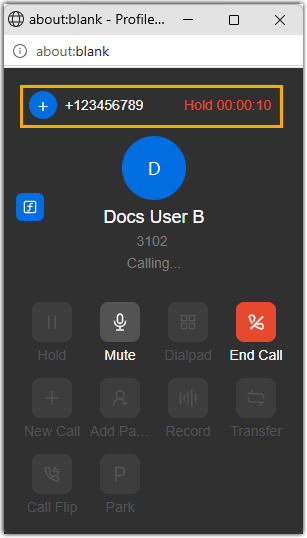
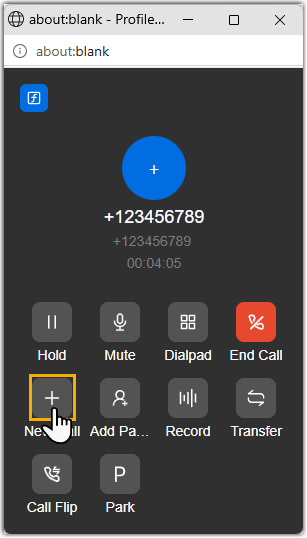
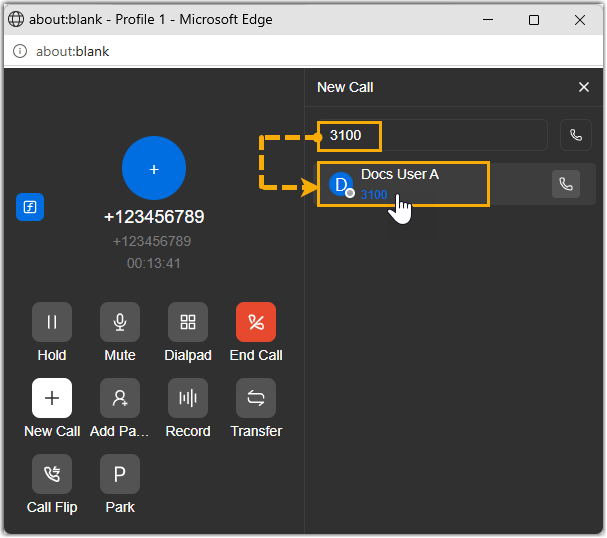
| Place a new call while on call | During an active call, you can add a new call to reach out to
another person without disconnecting your current call, for
example, to consult a colleague or get information from someone else. Note: A maximum of 6 calls are
supported at a time (one active and the reset on hold).
|
| Transfer a call | You can transfer an ongoing call to another number. For more information, see Transfer a call. |
| Park a call | During an active call, you can park the call on a parking
number and retrieve it from another phone. For more information, see Park a Call. |
| Transcribe a call | You can transcribe your calls into readable text in real
time, making it easier to review key points and follow up on
action items. Note: This operation is
available only when system administrator has enabled AI
Call Transcription feature and granted you
permission to use it. For more information, see Manually Transcribe a Call. |
 on the call window during
an active call.
on the call window during
an active call.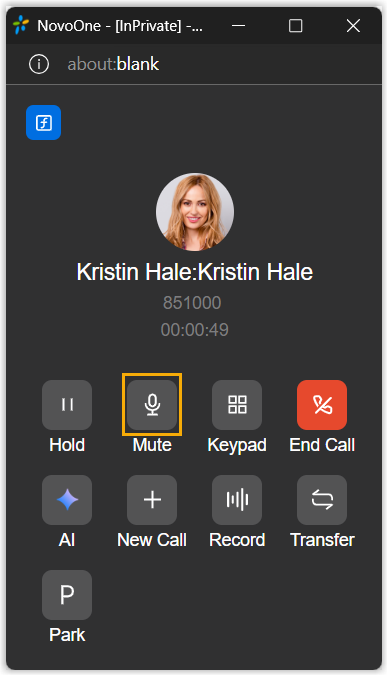
 .
.
 on the call control panel
during an active call.
on the call control panel
during an active call.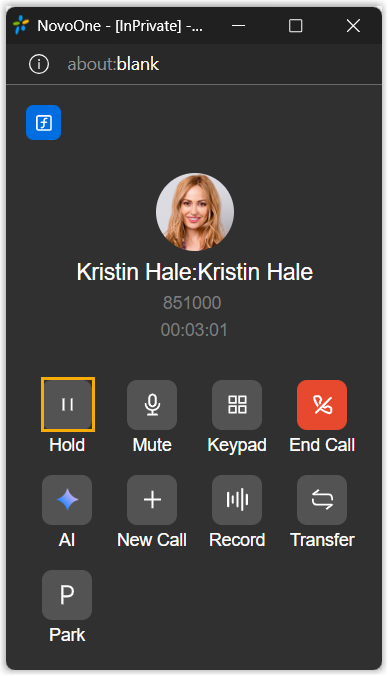
 .
.
 on the call control
panel.
on the call control
panel.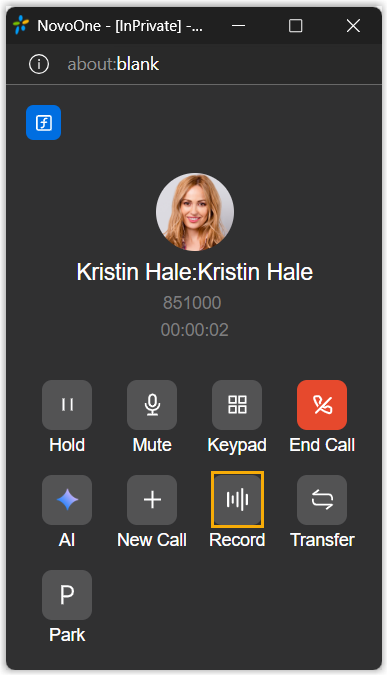

 .
.
 (
(
 to dial
out.
to dial
out.