Configure Two-Factor Authentication using Email
This topic describes how to configure Two-Factor Authentication (2FA) using email.
Procedure
- Log in to NovoOne Web Client, click your
account at the top-right corner, then go to .
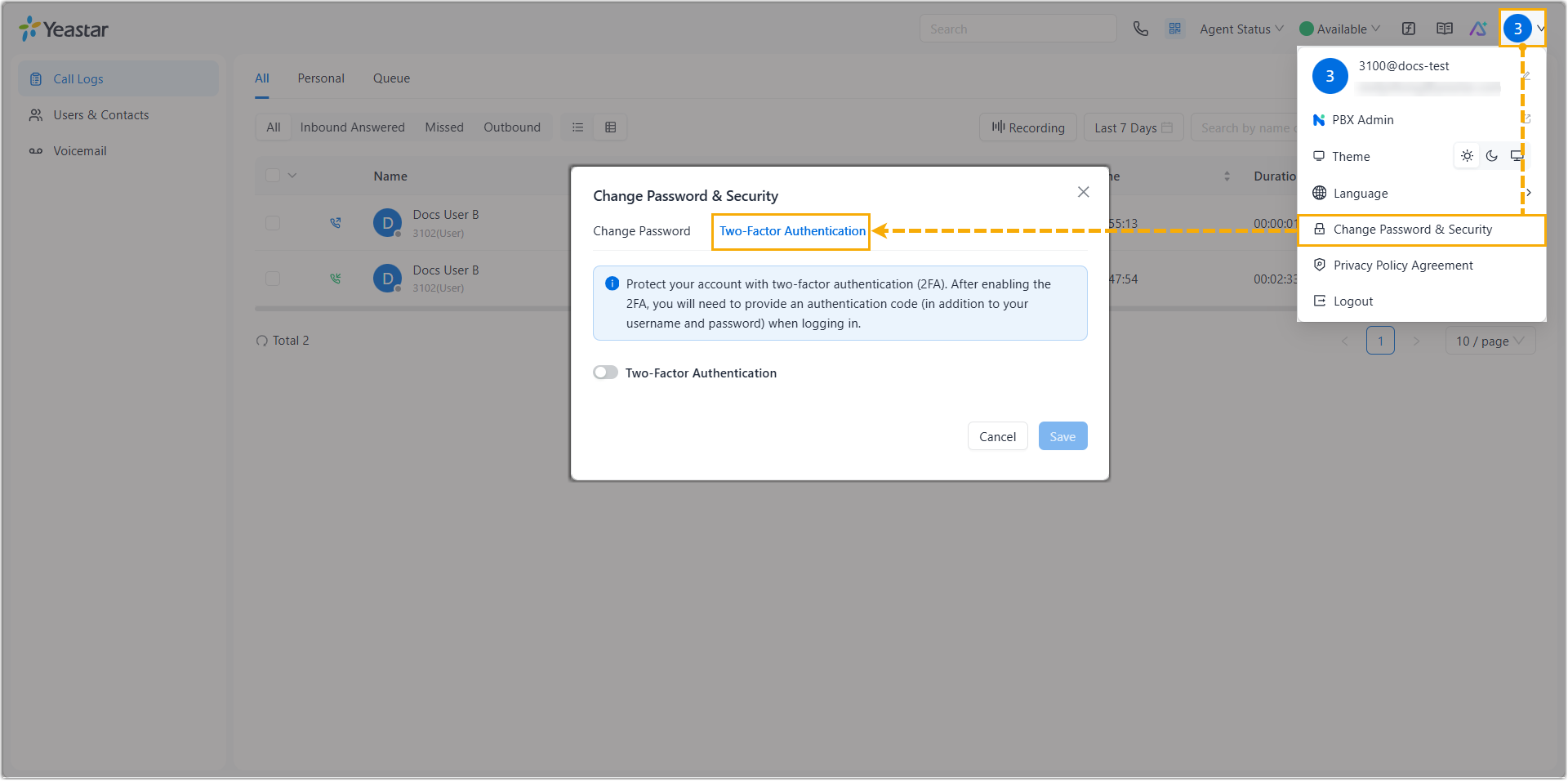
- Enable the 2FA feature.
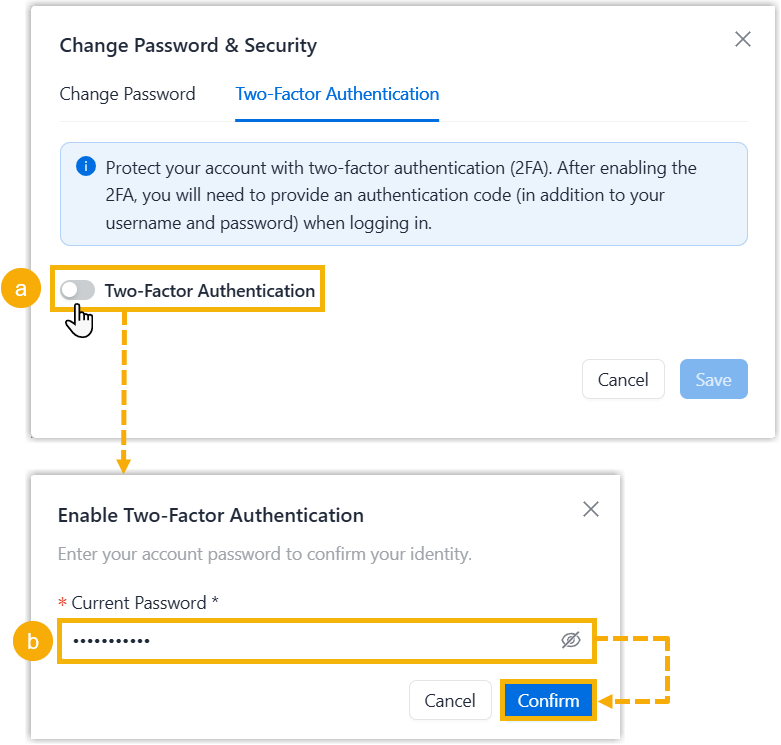
- Turn on the switch of Two-Factor Authentication.
- In the pop-up window, enter your account password and click Confirm to verify your operation.
- Select Email, and complete the following
settings.Note: If your account is not associated with an email, enter your email address in the provided field before proceeding. This email will then be bound to your account after setup.

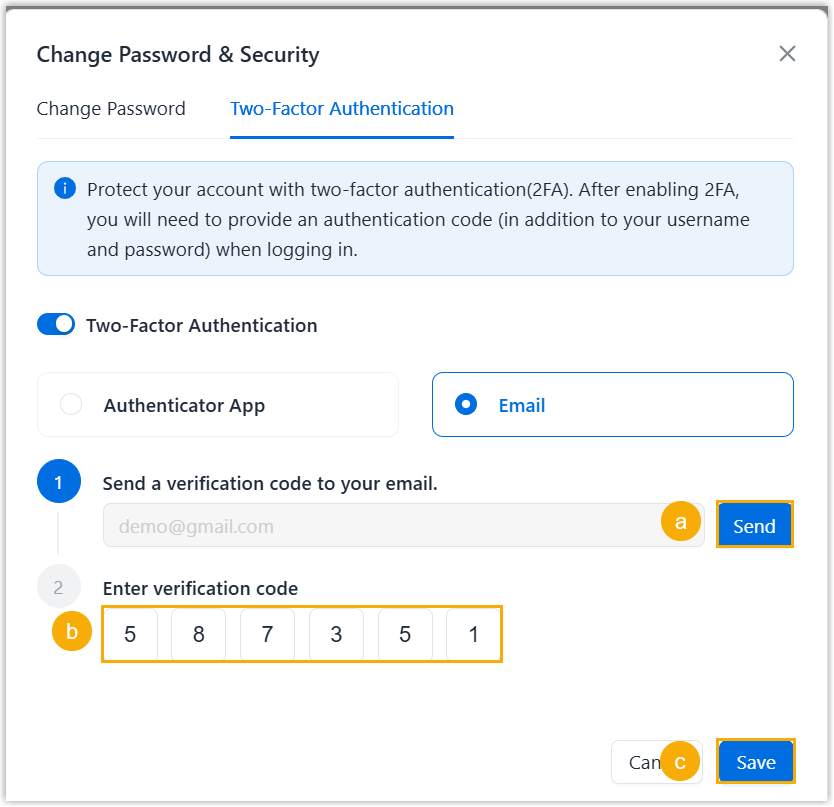
- Click Send Code.An email containing a 6-digit authentication code is sent to the email address.Note: The code expires 5 minutes after the email is sent.
-
In the Enter verification code. field, enter the code.
- Click Save.
- Click Send Code.
Result
The webpage prompts a message "2FA enabled successfully". Next time you log in with your account credentials, you will need to enter an authentication code additionally.
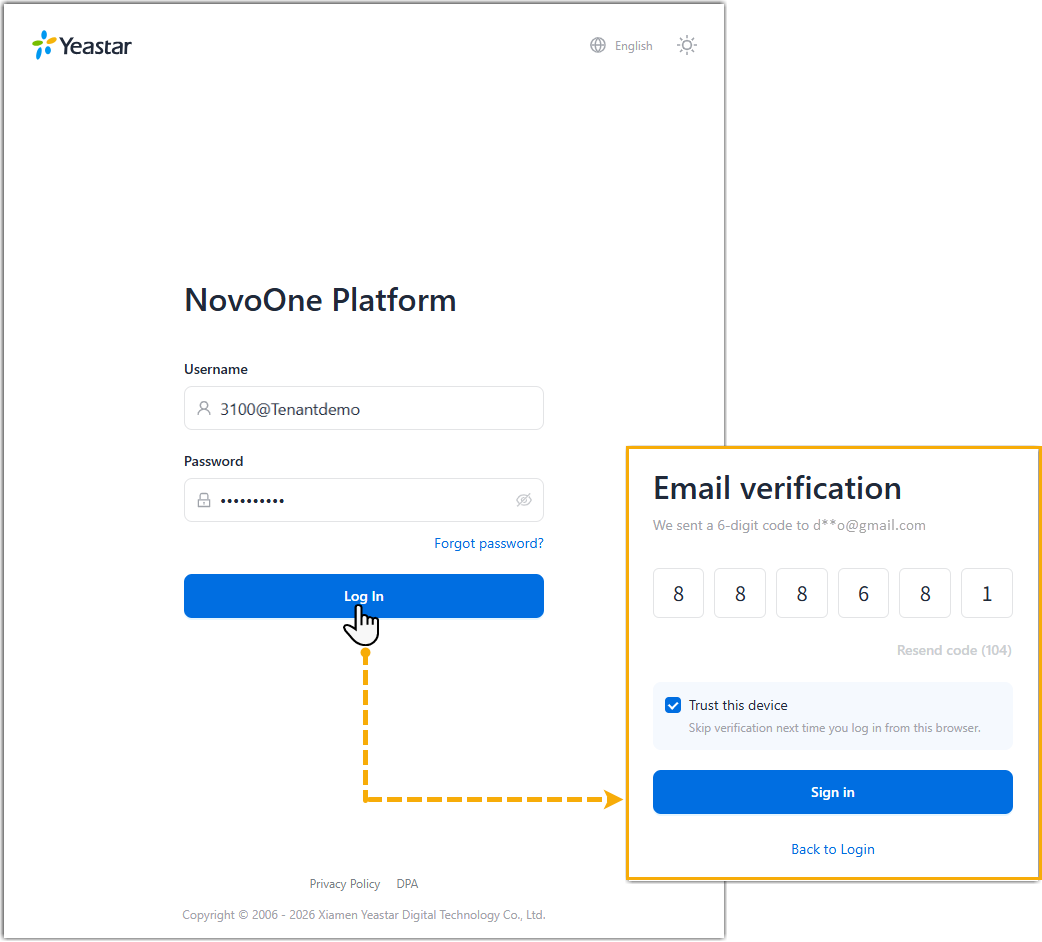
If you lose access to your two-factor authentication (e.g. you lost your device or could not receive authentication code via email), you can contact your system administrator to disable two-factor authentication for your account, so that you can directly log in with your account credentials.