Set up Auto Recording
Set up Call Recording for Internal Calls
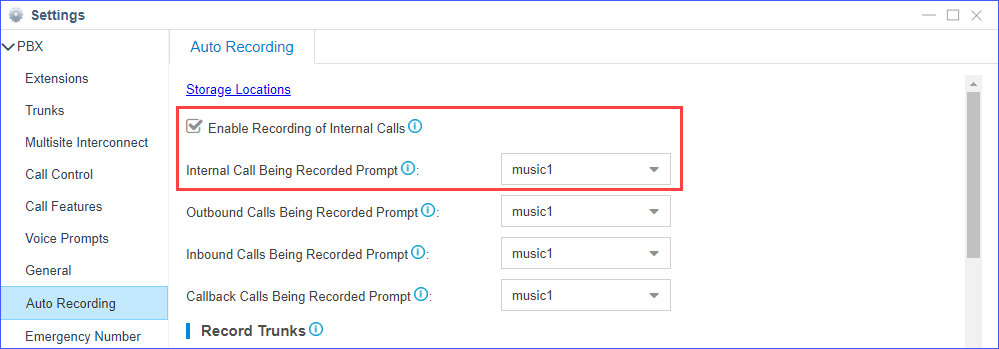
- Go to , check the option Enable Recording of Internal Calls.
- Set the recording announcement for internal calls.
- Upload a custom prompt to the PBX or record a custom prompt on the PBX.
- Set Internal Call Being Recorded Prompt
to your custom prompt.
The PBX will notify the called party that the call is being recorded.
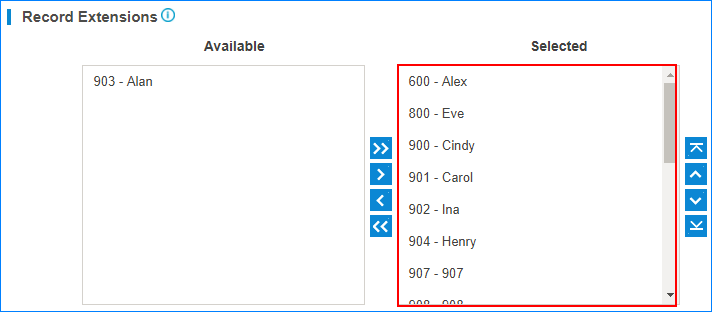
- In the Record Extensions section, select extensions
to the Selected box.
The selected extensions will be recorded.
- Click Save and Apply.
Set up Call Recording for External Calls
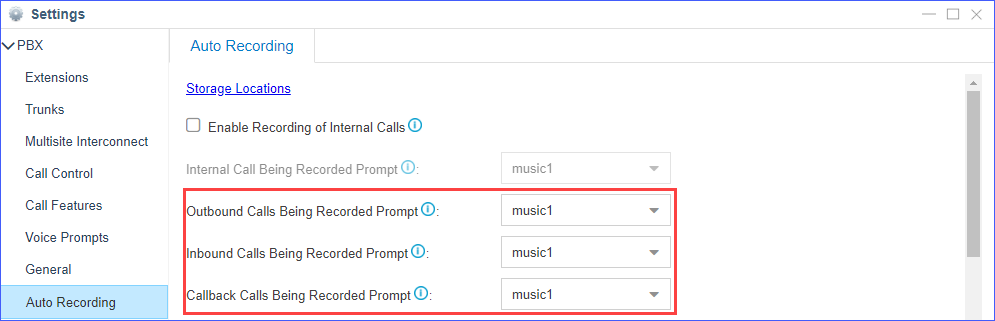
- Go to , set the recording announcement for external calls.
- Upload a custom prompt to the PBX or record a custom prompt on the PBX.
- Set custom prompt for outbound calls, inbound calls,
and
callback calls.
- Outbound Calls Being Recorded Prompt: If the external call (outbound) has enabled call recording, this prompt will notify the external party that the call is being recorded.
- Inbound Calls Recorded Prompt: If the external call (inbound) has enabled call recording, this prompt will notify the external party that the call is being recorded.
- Callback Calls Being Recorded Prompt: If the external call (callback) has enabled call recording, this prompt will notify the external party that the call is being recorded.
- In the Record Trunks section, select trunks to the
Selected box.
The calls through the selected trunks will be recorded.
Note: If you have selected extensions in the Record Extensions section, the extensions' calls will be recorded no matter which trunks are used.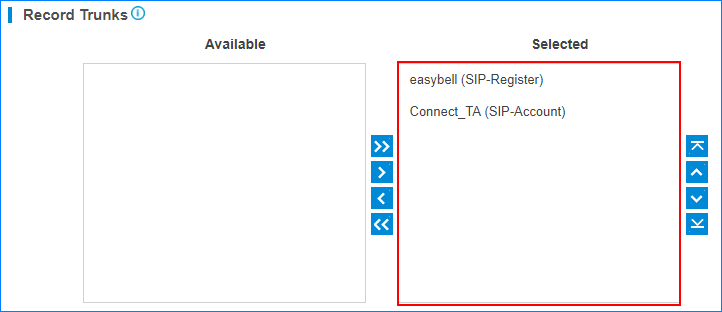
- Click Save and Apply.
Set up Call Recording for Conference Calls
- Go to .
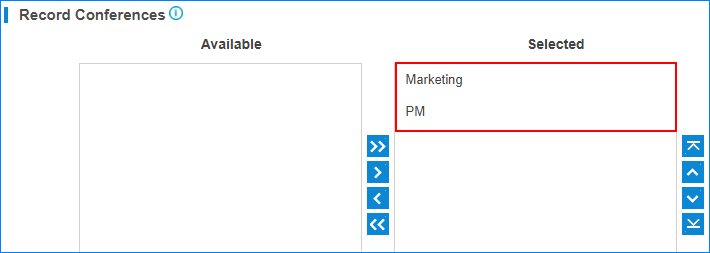
- In the Record Conferences section, select conferences
to the Selected box.
The selected conferences will be recorded.
- Click Save and Apply.