Restore a Cloud PBX backup on P-Series Appliance Edition / Software Edition
This topic explains how to migrate from Yeastar Cloud PBX to the P-Series PBX system by restoring backup files to the target system, which can be either the P-Series Appliance Edition or the P-Series Software Edition. This ensures a smooth transition of your configurations and data.
Prerequisites
- Properly set up the target P-Series PBX system with the required firmware version.
-
P-Series Appliance Edition: Version 37.19.0.70 or later
-
P-Series Software Edition: Version 83.19.0.70 or later
-
- Contact Yeastar support to obtain the backup file of your Yeastar Cloud PBXs.
Procedure
- Log in to the PBX web portal of your P-Series PBX system, go to .
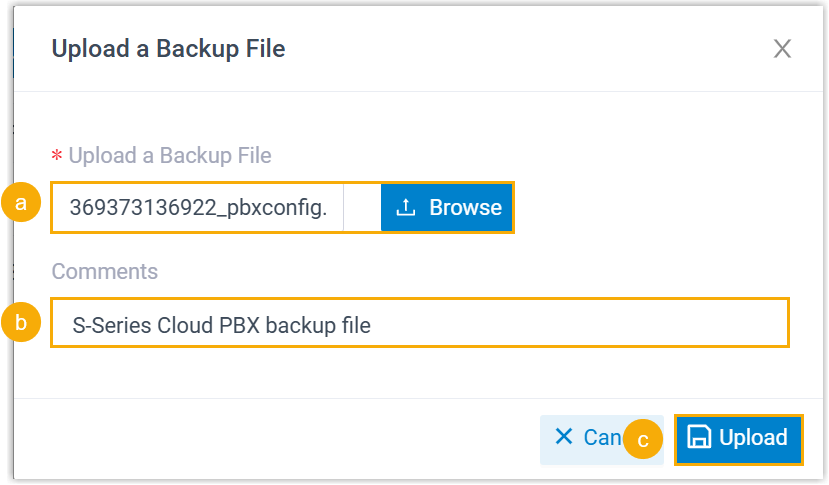
- Click Upload, and do as follows in the pop-up
window.
-
Click Browse to select the backup file of Cloud PBX.
-
Optional: In the Comments field, add a note to help you identify the backup file.
-
Click Upload.
The backup file is uploaded and displayed in the list.
-
- Restore the PBX system from the backup file.
- Click
 beside the backup file.
- In the pop-up window, click OK.
- Reboot the PBX to take effect.
- Click
Result
The configurations on your P-Series PBX system are overwritten with the data from the Cloud PBX backup file.
What to do next
Verify that the settings and data have been correctly migrated from Yeastar Cloud PBX to your P-Series Appliance Edition / Software Edition.