Expand Capacity or Subscribe New Service for P-Series Cloud Edition
Yeastar supports to expand extension capacity and call recording minutes, or subscribe to High Availability, AI Transcription, and AI Receptionist services for existing P-Series Cloud Edition.
Note: If you deliver cloud-based communication services with Turnkey
or BYOI solution and want to expand capacity, you need to proceed on Yeastar
Central Management. For more information, see the following reference
links:
Step 1. Go to product purchase page
- Log in to Yeastar Partner Portal, go to Products & Purchase.
- On the product list, click Purchase
on Cloud PBX (PCE Instance).
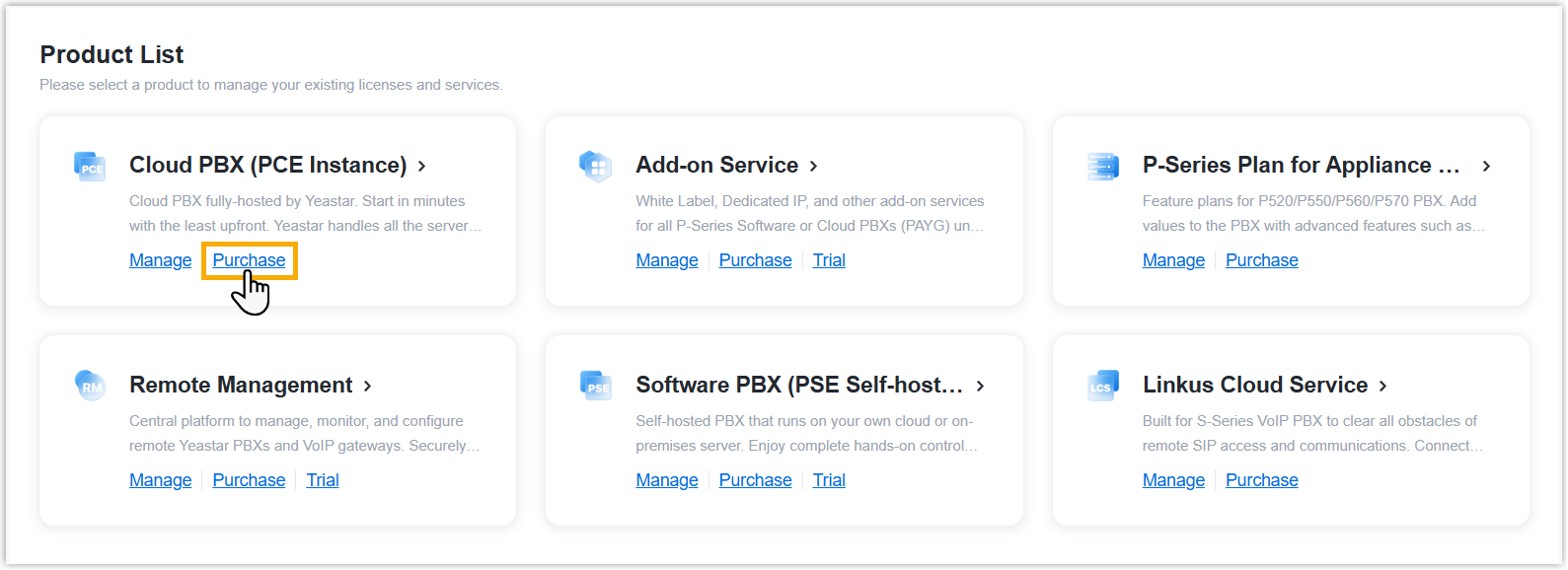
A side panel slides in from the right of the page.
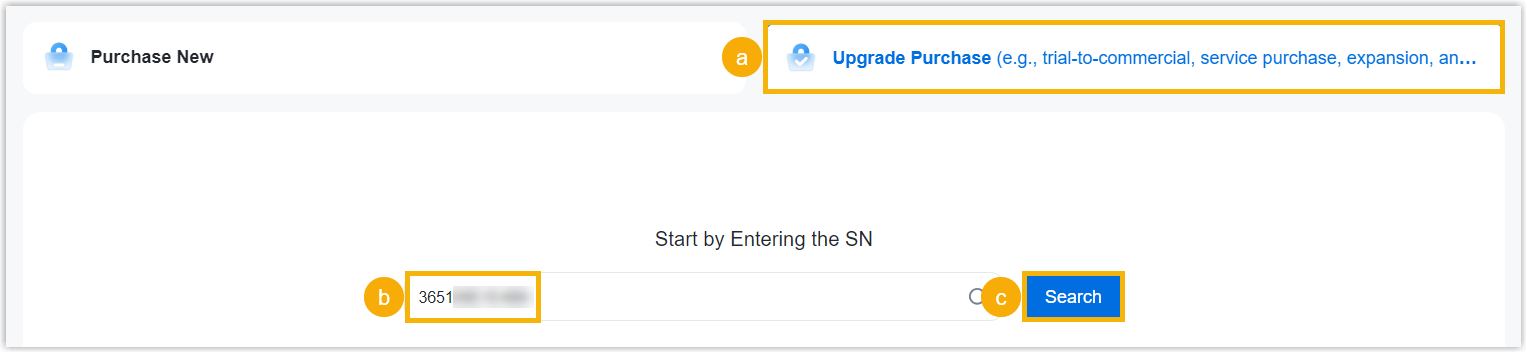
- Click Upgrade Purchase, then enter
the Serial Number (SN) of the cloud PBX for which you want to expand
capacity or subscribe services.
Step 2. Expand capacity or subscribe to service
- Expand extensions/call recording minutes, or subscribe to additional service
as needed.
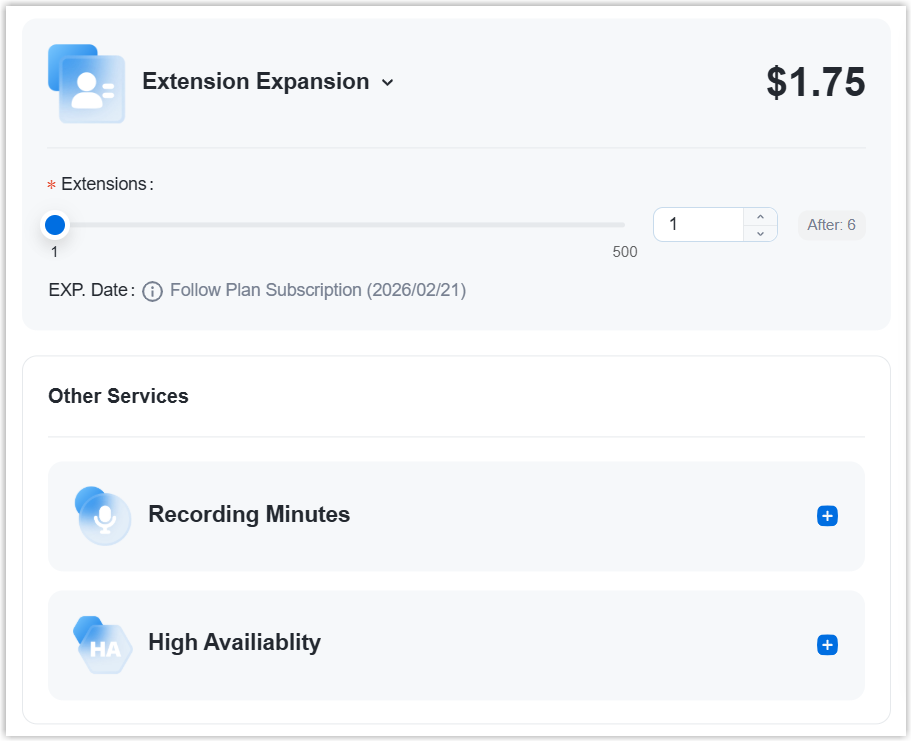
Service Description Extension Expansion Click Subscribe, then specify the quantity as needed. Note: AI Transcription (Monthly Rolling Plan) and AI Receptionist (Monthly Rolling Plan) are independent of the subscription plan, and must be ordered separately.Recording Minutes AI Transcription (On-Demand Minute Pack) AI Transcription (Monthly Rolling Plan) AI Receptionist (On-Demand Minute Pack) AI Receptionist (Monthly Rolling Plan) High Availability Click Subscribe. - On the right Order Summary section, click Checkout.
Step 3. Review the order and check out
- On the left Service Information section, review the service information.
- On the left Billing Information section, review and
edit the billing information as needed.Note:
- The billing information will be displayed on an invoice, which will be generated and sent to the selected billing contact's email address after you complete payment.
- By default, your information is automatically filled in. You can
change to another billing contact, either by selecting an
existing one from the drop-down list, or by clicking
Add New to add a contact. The billing
contacts are synchronized with the ones that you have set on
Billing
Receiver.

- On the right
Checkout section, choose either of the following
ways to check out.
- Pay by PayPal
-
- In the Payment Method section, click PayPal.
- Click PayPal and log in to your PayPal account to complete payment.
- Pay by debit card or credit card
-
- In the Payment Method section, click Debit or Credit Card.
- Click Debit or Credit Card and enter the information required to complete payment.
- Pay offline
-
- In the Payment Method section, click Offline.
- Optional: In the PI Number field, enter the PI number that is provided by Yeastar Sales.
- Click Place Order.
After you submit the order, your account manager or local distributor will contact you actively for the payment.
Result
After you complete payment, the followings are achieved:
- The expanded extensions and call recording minutes take effect on the PBX instance immediately.
- The billing contact will receive an email containing the order
summary and an invoice. He or she can click on the attached link to view or
download the invoice.Note:
- The attached link is valid in 24 hours and can be used ONCE only.
- You can also view the invoice on Yeastar Partner Portal: Orders and Billing > Orders >
 .
.