Why can't my Samsung smartphone receive Linkus calls?
If your Samsung smartphone fails to receive Linkus calls, you can resolve this issue in
the following ways:
- Enable full screen alerts
- Allow Linkus to display full screen alerts that cover the entire screen.
-
- Go to .
- At the top-right corner, tap
 , then select
Special access.
, then select
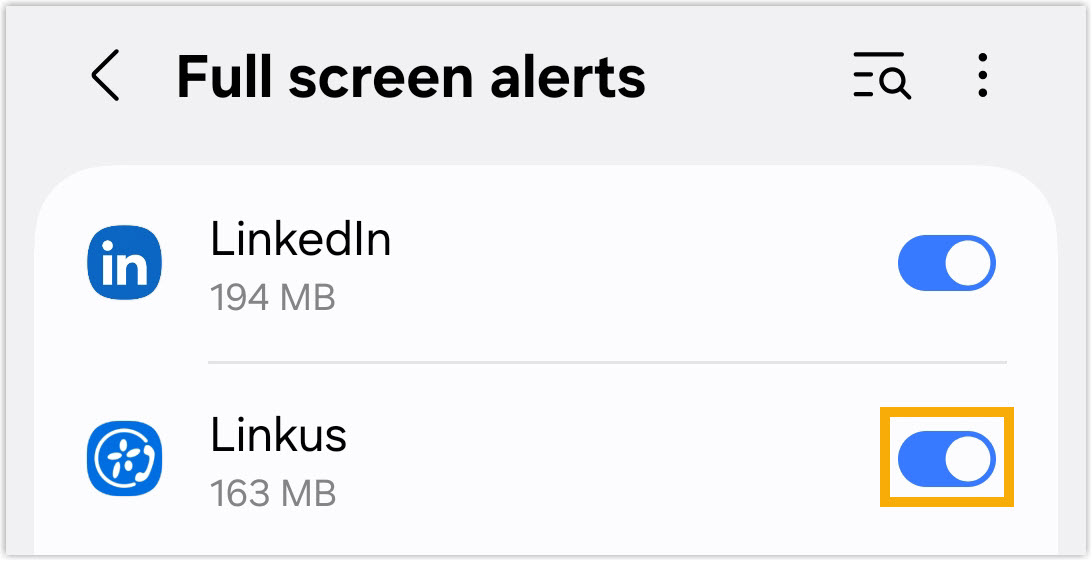
Special access. - Scroll down to the bottom and tap Full screen alerts.
- Find Linkus and turn on the switch.
- Disable Do not disturb / Focus mode
- If Do not disturb or Focus mode is enabled accidentally, you can turn it off.
-
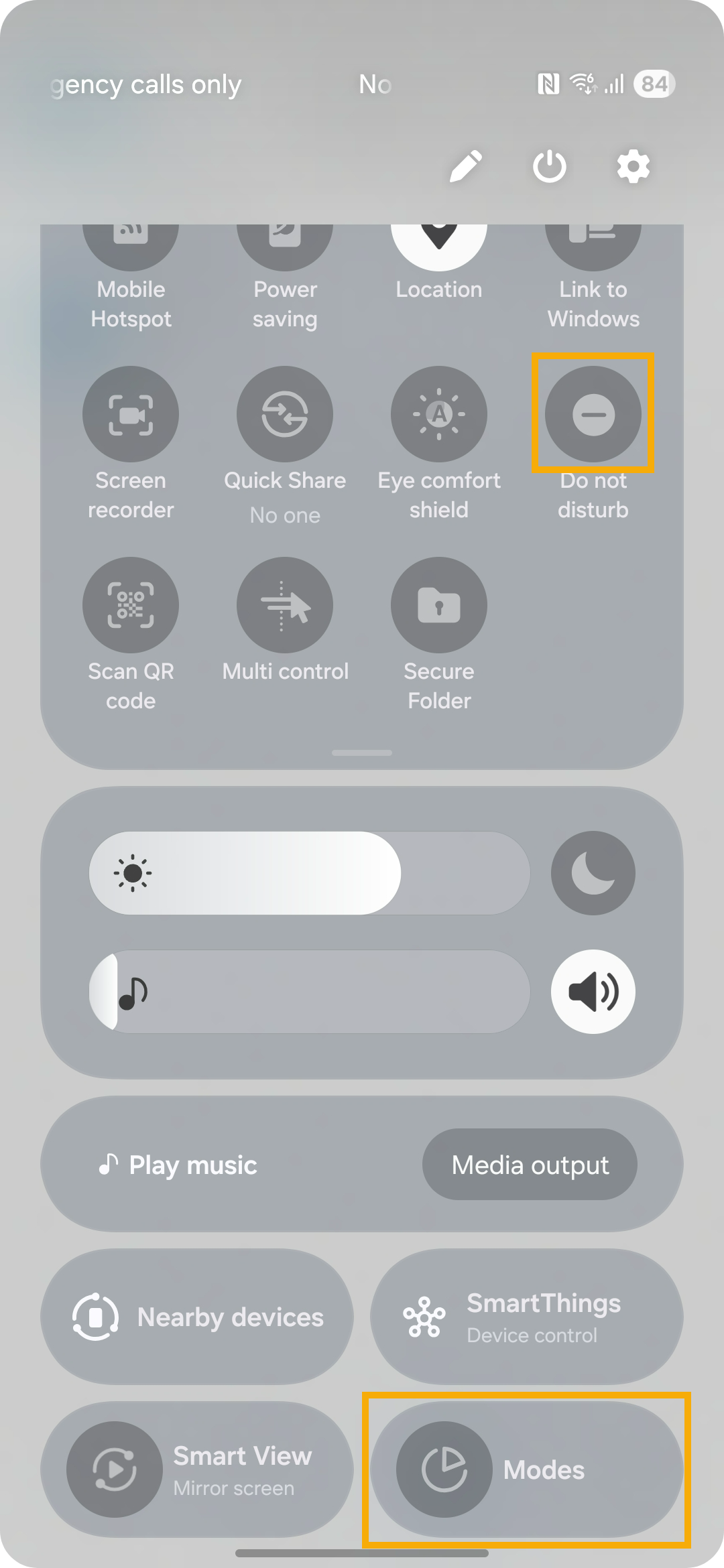
- Swipe down from the top of your screen to access the Control Center.
- Tap the Do not disturb button or the focus mode
button.
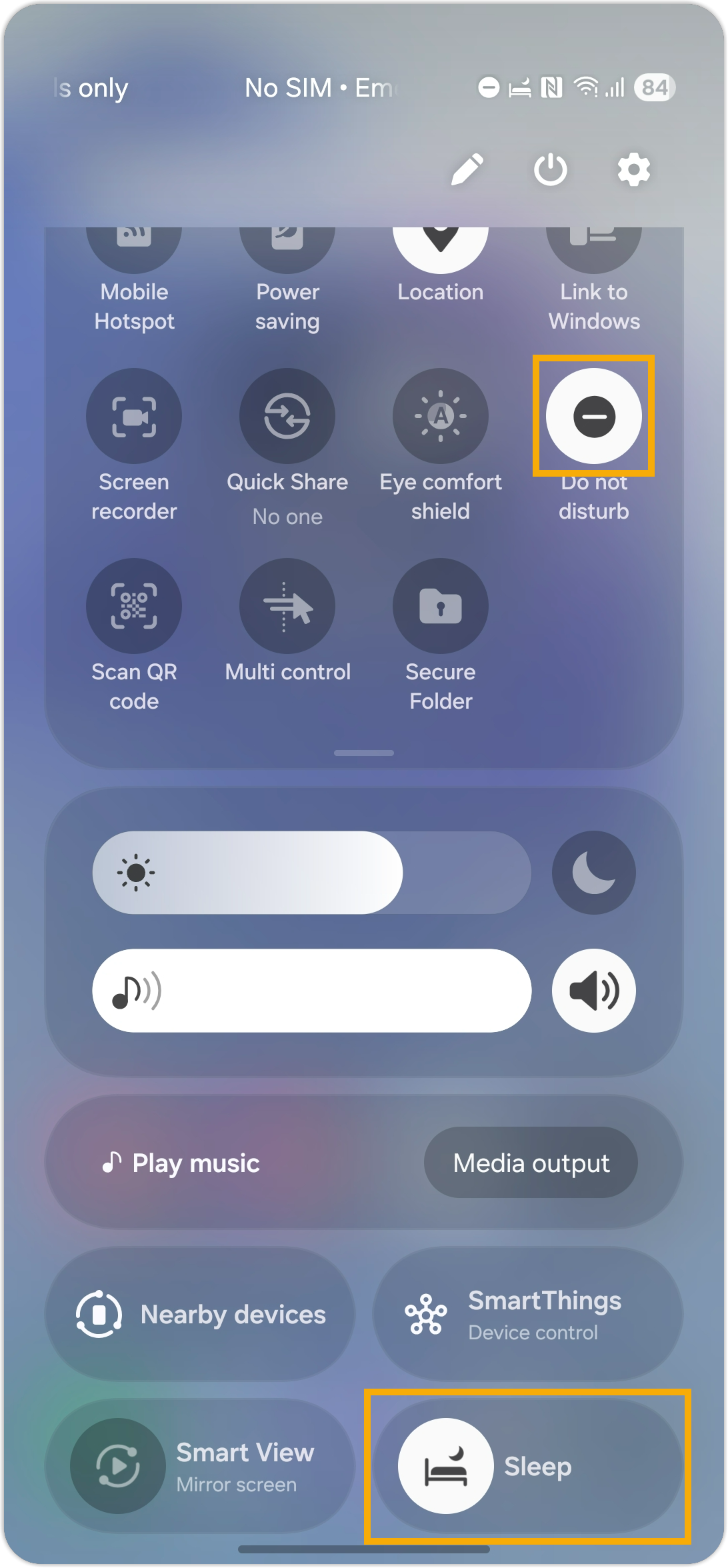
If the button is not highlighted, it indicates that the Do not disturb / Focus mode is disabled.
- Add Linkus app for notifications in Do not disturb / Focus mode
- If Do not disturb / Focus mode is enabled and must remain enabled, you can add
Linkus app to the allowlist to ensure calls are not missed.
Mode Instruction Do not disturb mode - Go to .
- In the Allowed during Do not
disturb pane, tap App
notifications.
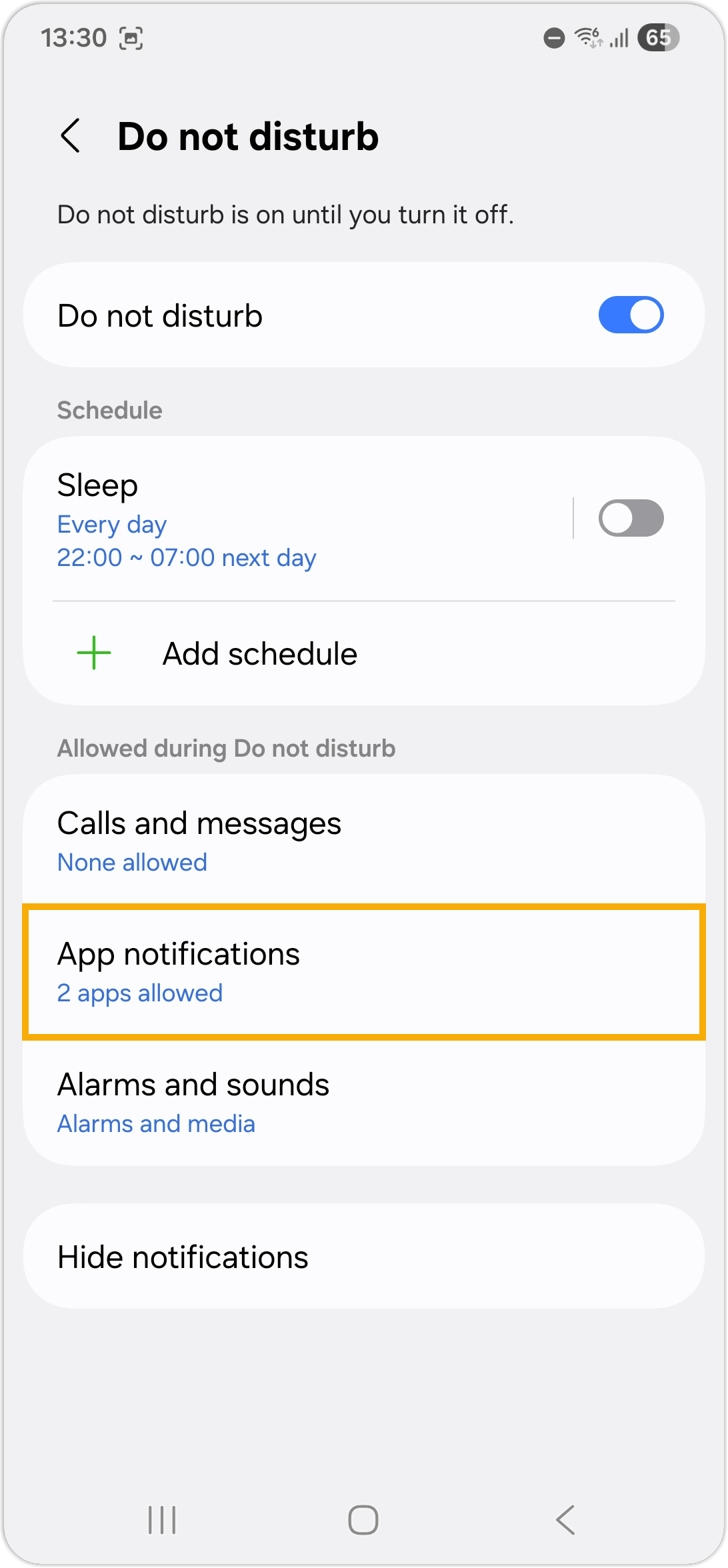
- Tap
 to add Linkus
app.
to add Linkus
app.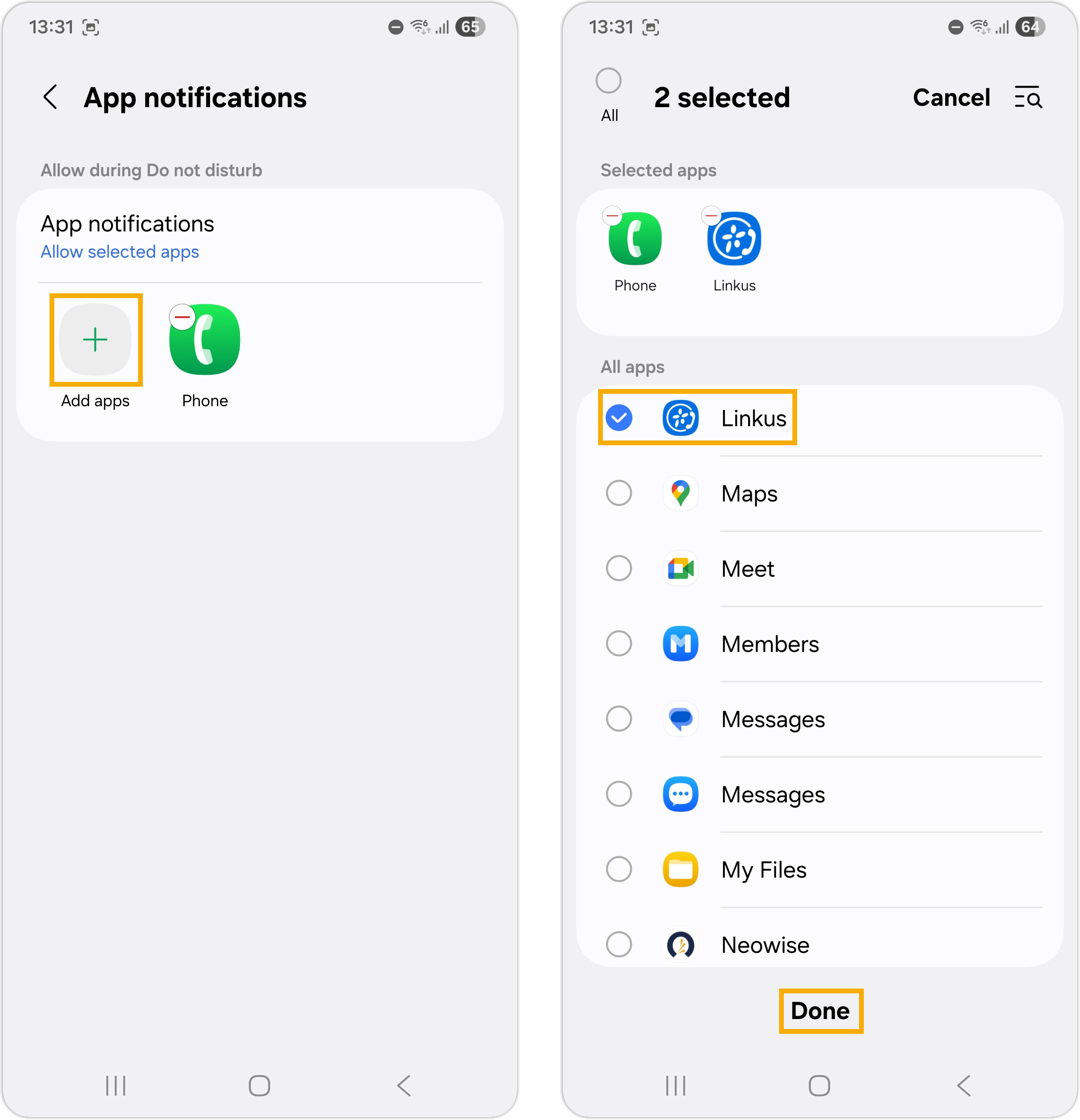
Focus mode - Go to , select a desired focus mode.
- In the Choose what this mode does pane, tap Stay focused.
- Allow notifications from Linkus.
- Tap Do not disturb.
- In the Allowed during Do not disturb pane, tap App notifications.
- Tap to add Linkus
app.
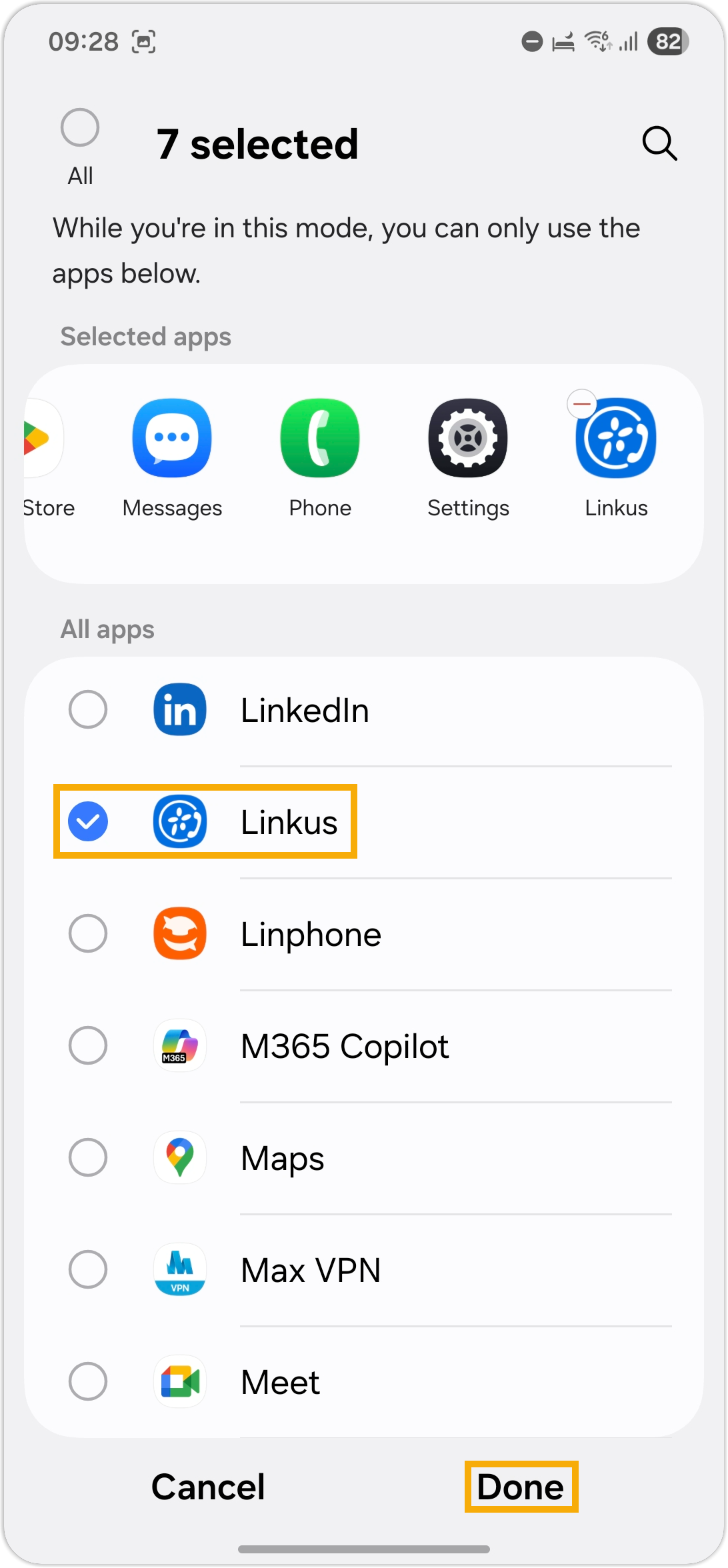
- Allow to use Linkus in this mode.
- Tap Restrict app usage.
- Add Linkus app.