Park a Call
During an active call, you can park the call on a system-assigned or manually selected parking number and retrieve it from another phone in the system, so you can move the call to a colleague or continue it on a different device.
Introduction
There are two types of call parking supported:
- System Park: The system automatically assigns a
parking number for the call. This is useful when you need to switch devices
or hand off the call to any available colleague. You can dial the number
from another device or share it with a colleague for quick retrieval.
For more information, see park the call on a system-assigned parking number.
- Selected Park Number: You manually select a specific
parking number for the call. This is useful when departments or individuals
have dedicated parking numbers, for example, when handing off a call to a
designated department using their shared parking number. Other members in
that department can then retrieve the call from their devices.
For more information, see park the call on a specified parking number.
Park a call on a system-assigned parking number
- Requirements
- System administrator has enabled the System Park feature code.
- Scenario
-
During a call, if you need to go from the public area to a conference room, you can park the call. On the IP phone in the conference room, simply dial the parking number to continue the call.
- Procedure
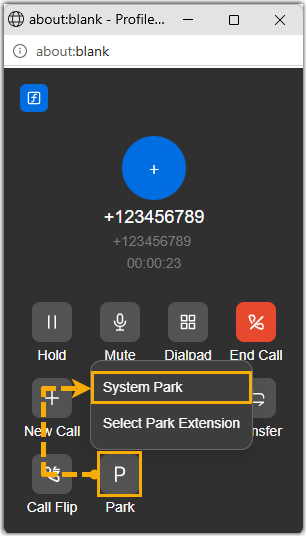
- During an active call, click Park on the call window,
then select System Park.
- Result
-
-
The call is parked on a system-assigned parking number, and a toast notification appears on the screen showing the parking number, for example, "<Number> park at 6000.".
- You can dial the parking number to retrieve the call.
-
Park a call on a specified parking number
- Requirements
- System administrator has enabled the Select Park Extension feature code.
- Scenario
-
To facilitate internal collaboration, each department has its dedicated parking number (e.g.,
6004for Sales department).During an active call, if your customer requires another department's (e.g., Sales) service, you can park the call on the department's parking number. Anyone in the designated department can retrieve the call using the number to quickly assist the customer.
- Procedure
-
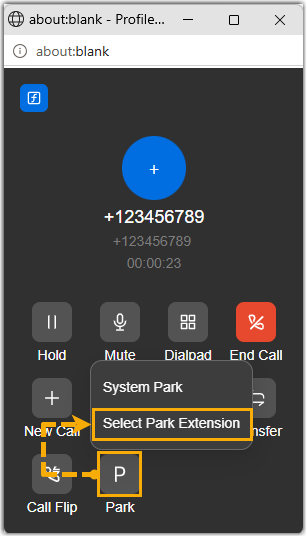
- During an active call, click Park on the call
window, then select Selected Park
Number.
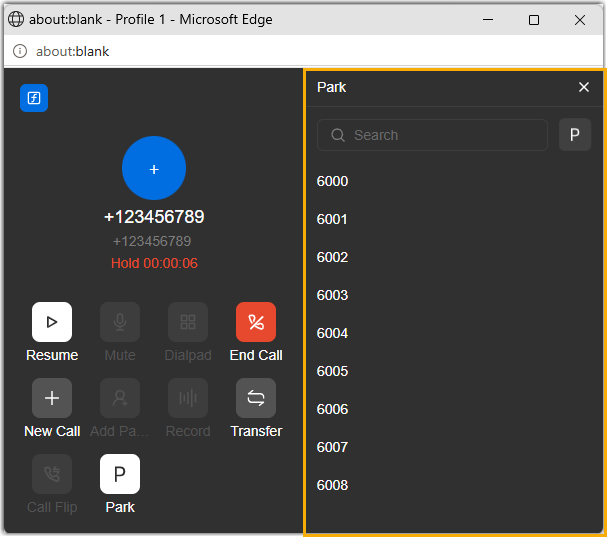
The call is put on hold, and the currently available parking numbers is listed in the right-panel.
-
In the right panel, select the desired parking number using either of the following methods.
- In the number list, search and select the desired parking number.
- In the search bar, enter the desired parking number, then
click
 beside the search bar.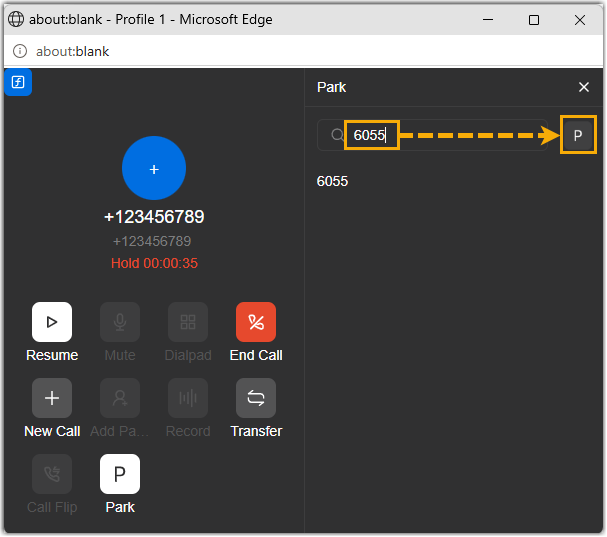
- During an active call, click Park on the call
window, then select Selected Park
Number.
- Result
-
- The call is parked on the specified parking number, and a toast notification appears on the screen with the massage "<Number> park at 6055.".
- The salespersons can dial the parking number or press the associated Park & Retrieve function key on their devices to quickly retrieve the parked call.