Manage Destination for a DID number
After you configure a destination for a DID number, you can remove or change the destination as needed. This topic describes how to remove or modify an configured destination for a DID number.
Change the destination for a DID number
- Prerequisites
-
You have set destination for DID numbers.
- You have set up the desired destination. Supported destination types and
their corresponding setup references are listed in the table below.
Destination type Setup reference User Create a User Queue Set up a Queue IVR Set up an IVR Ring Group Set up a Ring Group AI Receptionist Add and Configure an AI Receptionist
- Procedure
- Log in to NovoOne Tenant portal, go to .
- Click
 beside the desired DID number.
 - In the pop-up window, complete the following settings.
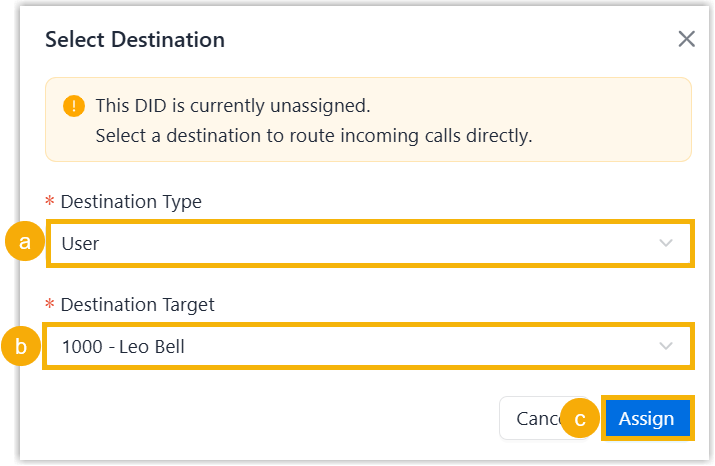
- In the Destination Type, select the desired destination type.
- In the Destination Target, select the desired destination.
- Click Assign.
- Result
- The reconfigured destination for the DID number is displayed on the DID numbers list.
Remove the destination for a DID number
- Prerequisites
You have set destination for DID numbers.
- Procedure
- Log in to NovoOne Tenant portal, go to .
- Click
 beside the desired DID number.
 - In the pop-up window, click Remove.
- Result
- The destination for the DID number is successfully removed. The system
automatically checks whether the DID number matches any inbound route in
your tenant and displays the destination information for this DID number on
the DID Numbers list based on the matching result.
- If a match exists, Call Handling column changes
to Inbound Route, and the Destination
column displays the destination for the inbound
route.
When an external caller dials the DID number, the caller can reach the destination for the inbound route.
- If no match is found, Call Handling column changes to Unassigned, and the Destination column displays "-".
- If a match exists, Call Handling column changes
to Inbound Route, and the Destination
column displays the destination for the inbound
route.