Configure Distinctive Ringtones for a Provisioned IP Phone
This topic describes how to set distinctive ringtones via Alert-Info keyword for a provisioned IP phone.
Background Information
The Distinctive Ringtone feature enables IP phones to play specific ringtones for designated incoming calls. This allows users to quickly identify important calls without checking the Caller Name or Caller ID on the phone display.
- The system inserts an Alert-Info keyword into the Alert-Info header according to the call type, and then forwards the call (an INVITE request carrying the Alert-Info header) to the IP phone.
- The IP phone parses the INVITE request to extract the Alert-Info keyword and plays the corresponding ringtone accordingly.
Procedure
Step 1. Set Alert-Info keywords based on call type
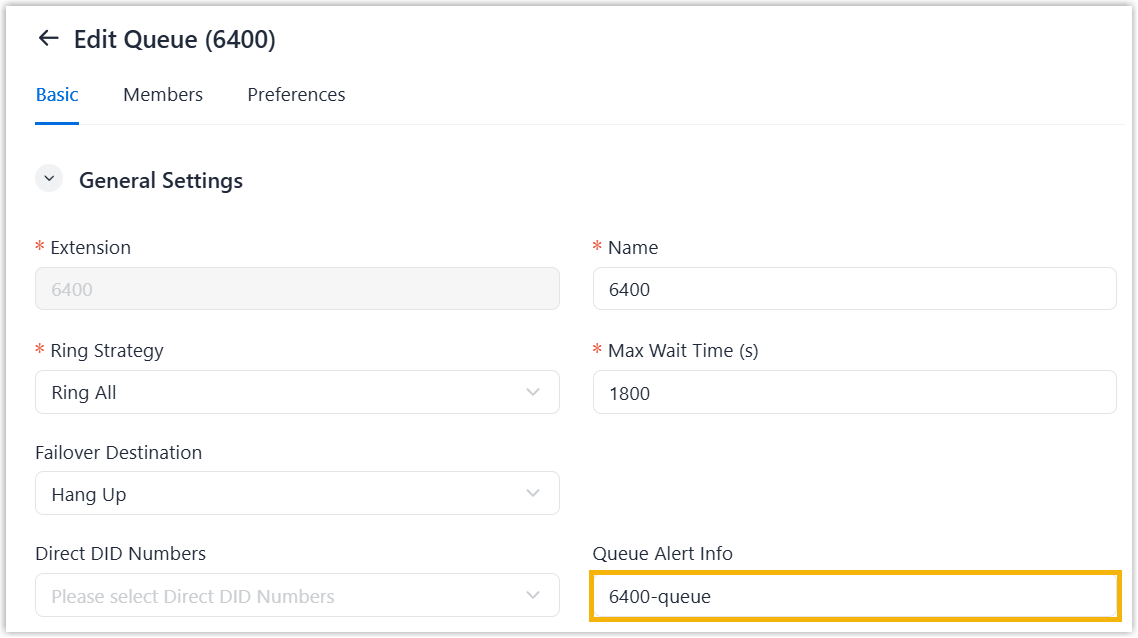
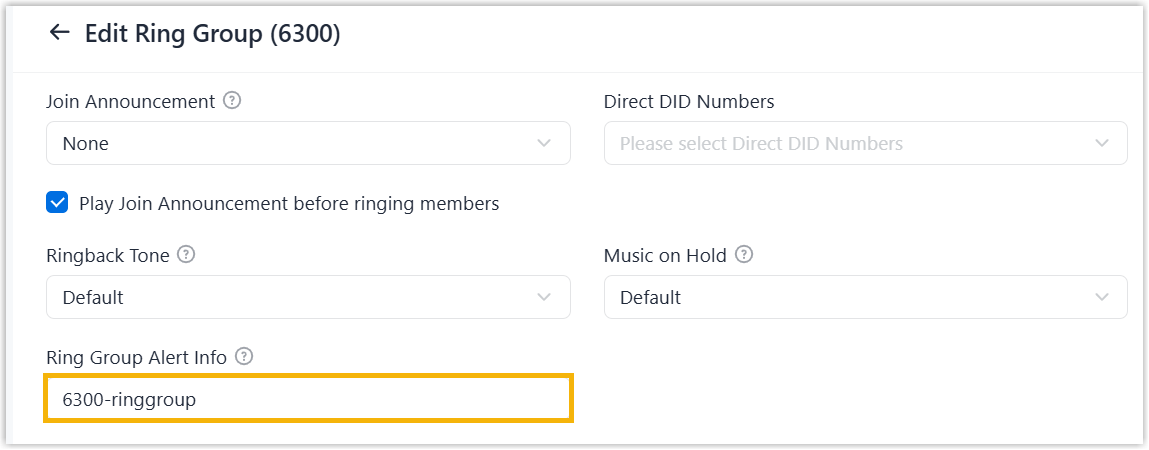
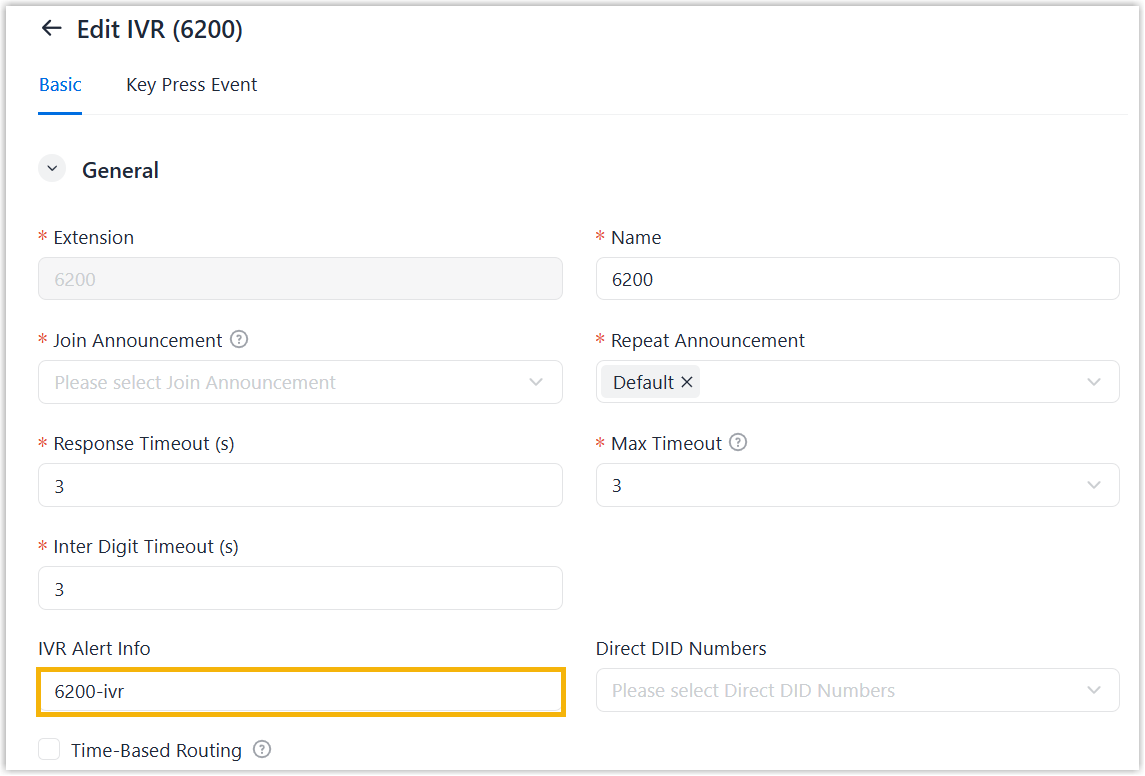
Before configuring distinctive ringtones for an IP phone, you need to set Alert-Info keywords for each call type that needs to be distinguished.
| Call type | Instruction |
|---|---|
| Queue calls |
|
| Ring group calls |
|
| IVR calls |
|
Step 2. Set specific ringtones for a provisioned IP phone
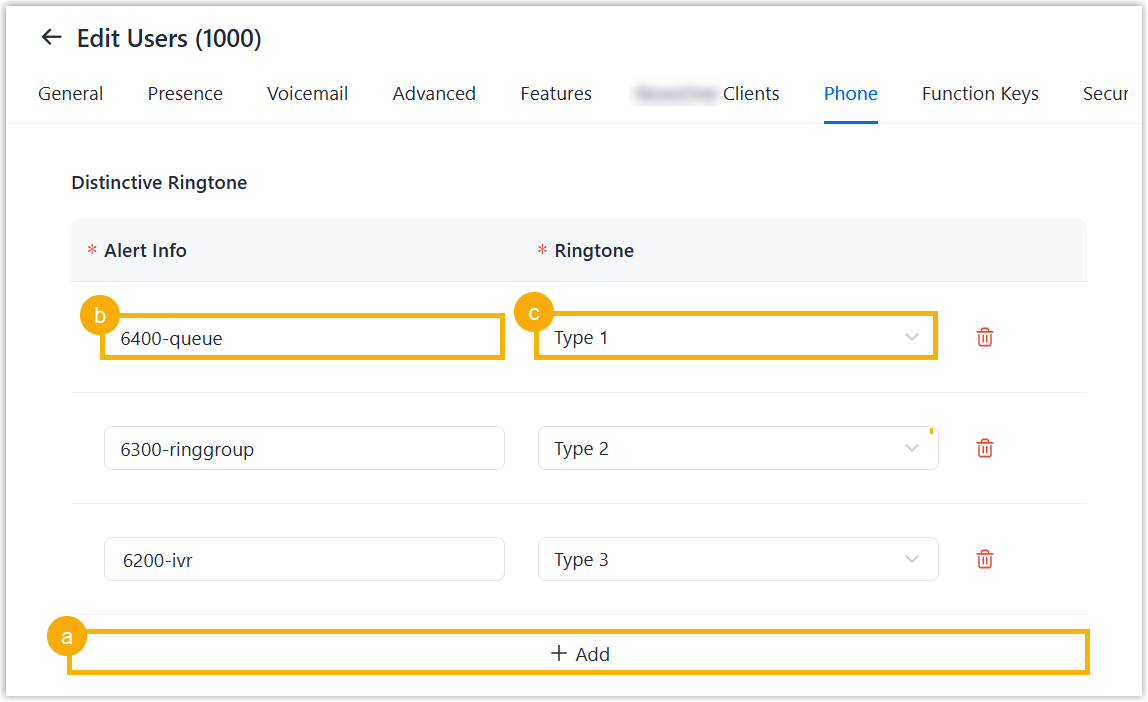
After set Alert-Info keywords for desired different call types, you can configuring distinctive ringtones for a provisioned IP phone based on these keywords.
- On NovoOne Tenant portal, go to .
- Hover over
 beside the desired phone, and click Manage Phone
Settings.
beside the desired phone, and click Manage Phone
Settings. - Scroll down to the Distinctive Ringtone section,
configure specific ringtones for different call types.
- Click Save.
- Reprovision the IP phone.
- Go to .
- Click
 beside the phone.
 - In the pop-up window, click OK.
Result
The IP phone applies the ringtone configuration and plays the corresponding ringtone according to the Alert-Info header carried in the call.