Create an Advanced Auto Provisioning Template
This topic describes how to create an advanced auto provisioning template including general settings defined in a default provisioning template and additional parameters.
Procedure
- Log in to NovoOne Platform portal, go to .
- Click Add.
- In the Basic section, set basic information.
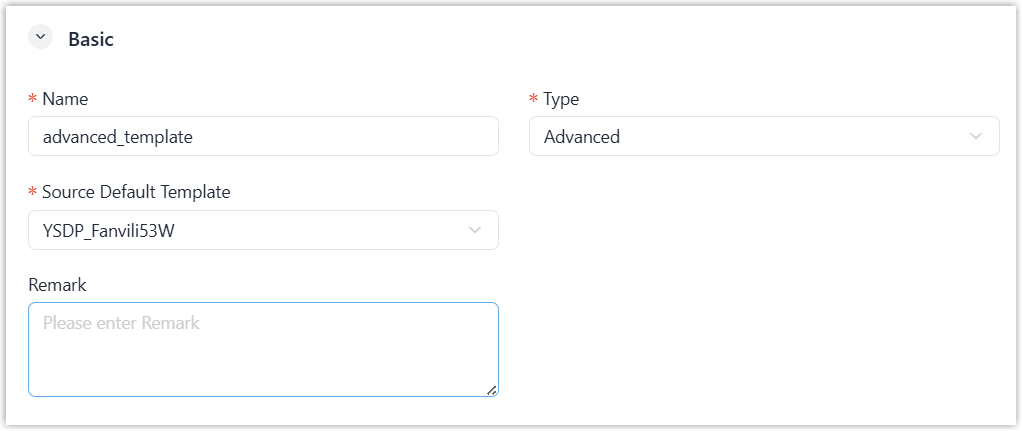
- Name: Enter a name to help you identify it.
- Type: Select Advanced.
-
Source Default Template: Select a default provisioning template to customize.
The values of general settings in the source default template are automatically filled in corresponding fields in the below Configurations section.
- Remark: Optional. Enter a short description about this template.
- In the Configuration section, customize
the settings provided by the source default template as needed.
Setting group Instruction Preference Modify the preference settings. Distinctive Ringtone Add distinctive ringtones for different incoming calls based on Alert-Info keyword. Codecs Modify codecs settings.
LDAP Directory Modify LDAP directory settings. VLAN Modify VLAN settings. - In the Customize Configuration
Parameters in Text section, add additional parameters that
are not provided by the source default template.Note: The variables that starts with
{{.and ends with}}are associated with the settings that can be configured on Configuration sections and function key configuration page for tenant user on the NovoOne Tenant portal. Please do not edit these variables in the below boxes if you still want to use the corresponding features.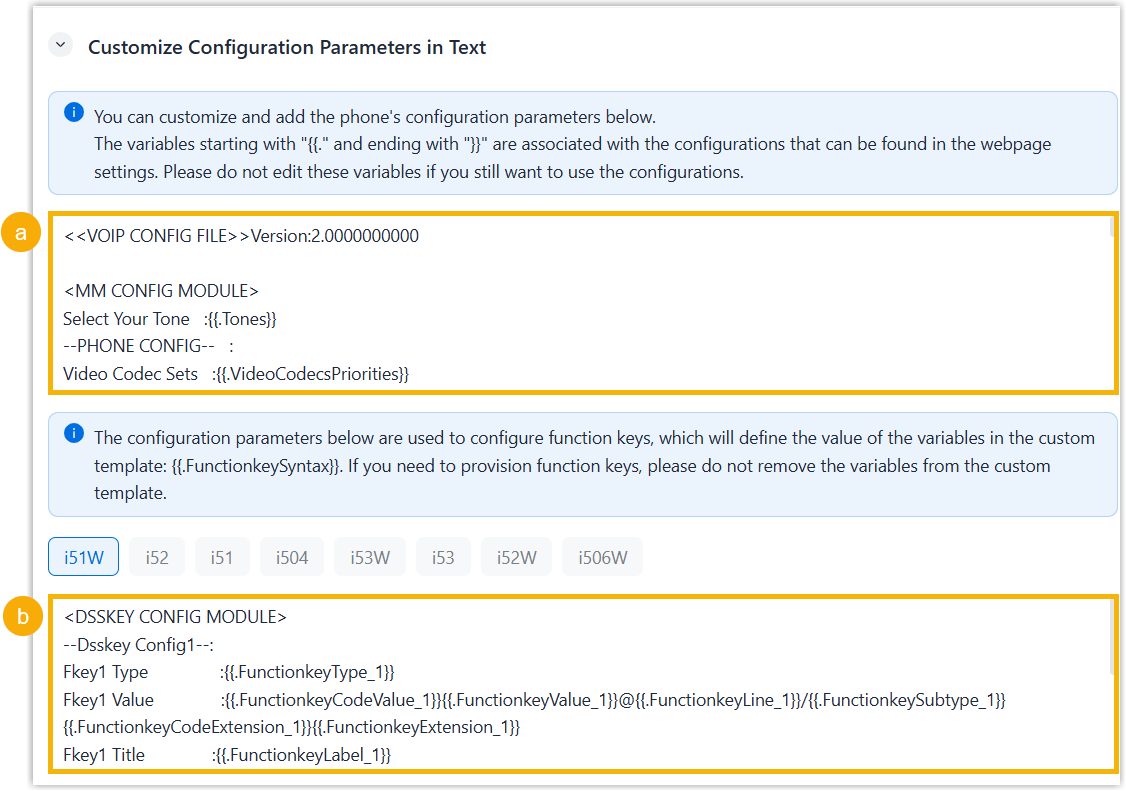
- In the first text box, add your configuration
parameters.Note: Contact your vendor to make sure that the parameters are supported for the device model.
- In the second text box, select which function keys to be applied
according to the phone model.
You can also add your function key parameters in the second text box.
- In the first text box, add your configuration
parameters.
- Optional: In the
Assign section, assign the resource to your
tenants to enable their tenant administrators to use it.
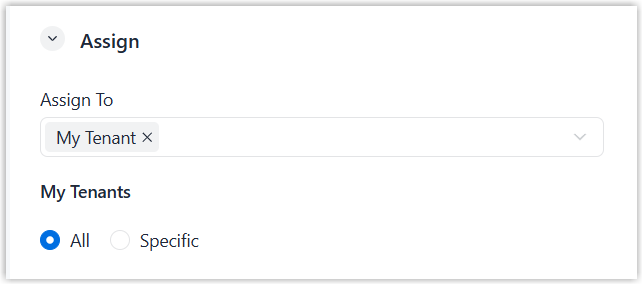
- To assign to all tenants, select My Tenant in
the Assign To drop-down list and select
All.
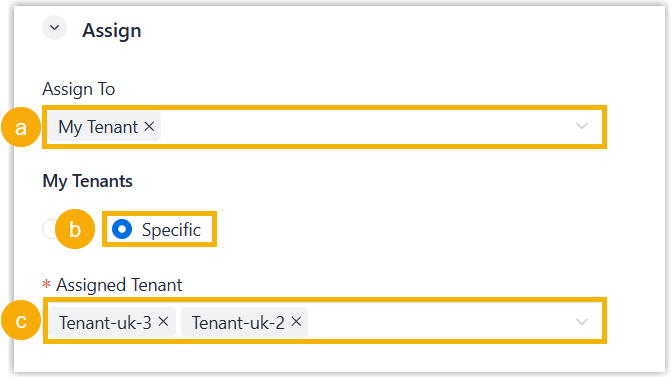
- To assign to specified tenants, complete the following settings.
- Select My Tenant in the Assign Todrop-down list.
- Select Specific.
- Select desired tenants in the Assigned Tenant drop-down list.
- To assign to all tenants, select My Tenant in
the Assign To drop-down list and select
All.
- Click Save.
Result
- The custom auto provisioning template is displayed on the Custom
Template list.
You can auto provision IP phones of the corresponding models to any of your own tenants using the custom template. For more information about provisioning IP phones, see Auto Provision an IP Phone.
- The administrators for the assigned tenants can auto provision IP phones of the corresponding models using the custom template on NovoOne Tenant portal.