Upload a Device Firmware
You can upload device firmwares used for device upgrade. This topic describes how to upload a device firmware on NovoOne Platform.
Prerequisites
You have obtained the phone firmware file to be uploaded.
Note: Each firmware file must not exceed 800 MB.
Procedure
Note: Up to 10 device firmwares can be uploaded.
- Log in to NovoOne Platform Portal, go to .
- Click Add.
- In the Device section, enter the basic information of
the model.

- Vendor: Select the firmware vendor.
- Model: Select the device model.
- In the Firmware section, fill in the basic
information of the firmware.
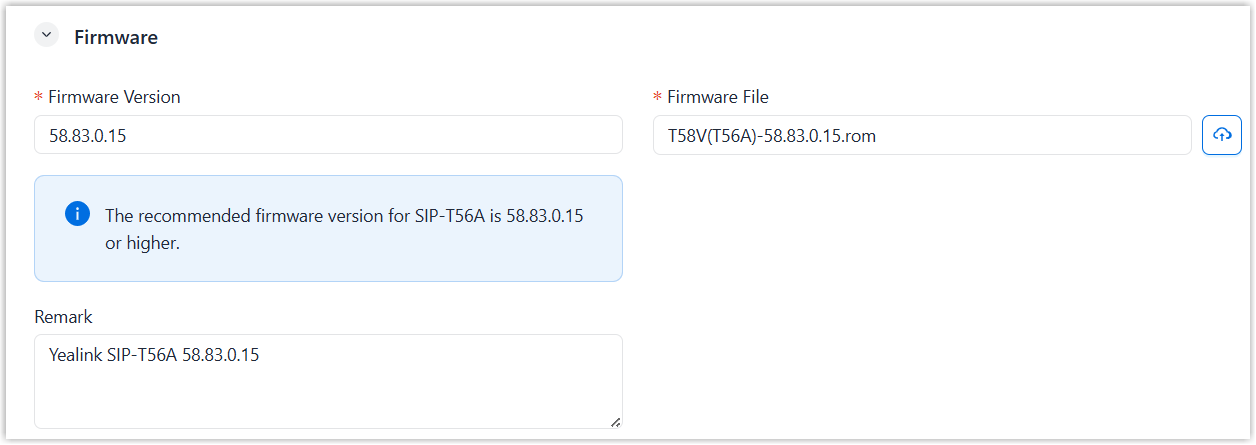
- Firmware Version: Enter the firmware version.
- Firmware File: Click
 to upload the firmware file from your computer.
- Remark: Optional. Enter a short description about the firmware.
- Optional: In the
Assign section, assign the resource to your
tenants to enable their tenant administrators to use it.
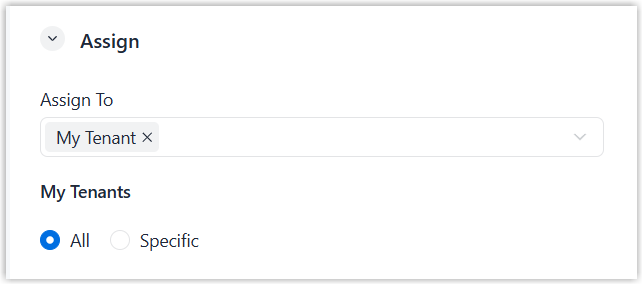
- To assign to all tenants, select My Tenant in
the Assign To drop-down list and select
All.
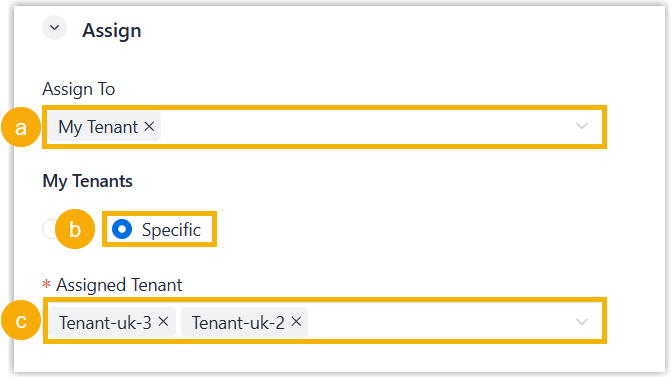
- To assign to specified tenants, complete the following settings.
- Select My Tenant in the Assign Todrop-down list.
- Select Specific.
- Select desired tenants in the Assigned Tenant drop-down list.
- To assign to all tenants, select My Tenant in
the Assign To drop-down list and select
All.
- Click Save.
Result
- The uploaded firmware is displayed on the Phone Management list. You can use it to upgrade provisioned devices.
- The administrators for the assigned tenants can use it to upgrade provisioned devices on NovoOne Tenant portal.