Log In to NovoOne Platform Portal
This topic describes how to log in to NovoOne Platform Portal.
Prerequisites
You have obtained the credentials (email address and password) of an activated NovoOne Platform account.
Procedure
- When NovoOne Platform is Yeastar‑hosted, log in via a unified portal URL.
- When NovoOne Platform is self‑hosted, log in via a domain provided by your service provider.
- Log in via a unified portal URL
-
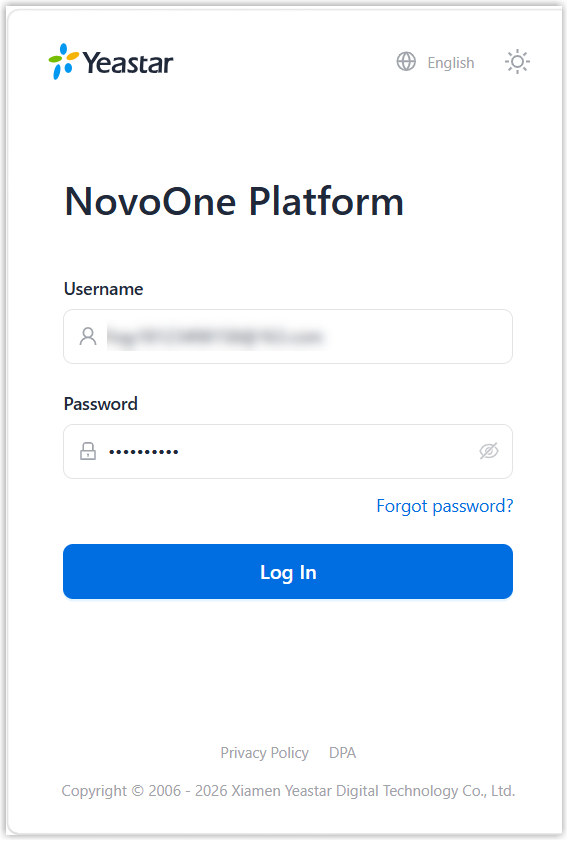
- Launch your web browser, visit NovoOne Platform portal.
- On the login page, enter the email address and password of your NovoOne Platform account, then click
Log In.Note: If you forget your login password, reset the password.
- In the Main Region drop-down list, select a
desired region as your main region and click
Continue.
When you log in via the unified portal URL
https://novoone.com, the system will automatically redirect you to the main region URL. For example, if the main region is set to Asia (Singapore), you will be automatically redirected to the region URLhttps://sg.novoone.com.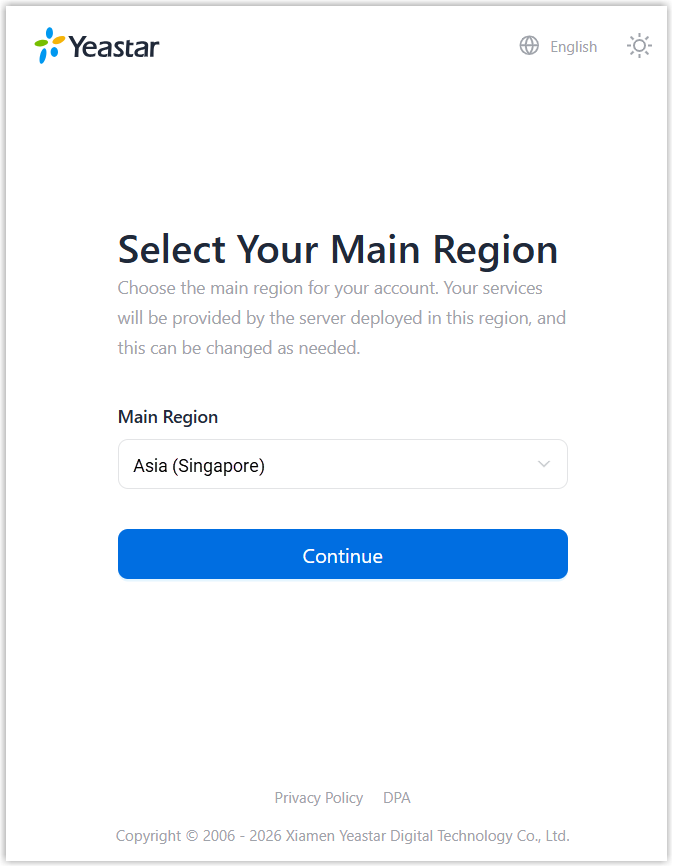
- If you have set up Two-Factor Authentication (2FA), you need to
enter an authentication code.
For more information about setting up 2FA, see Two-Factor Authentication (2FA) Overview.
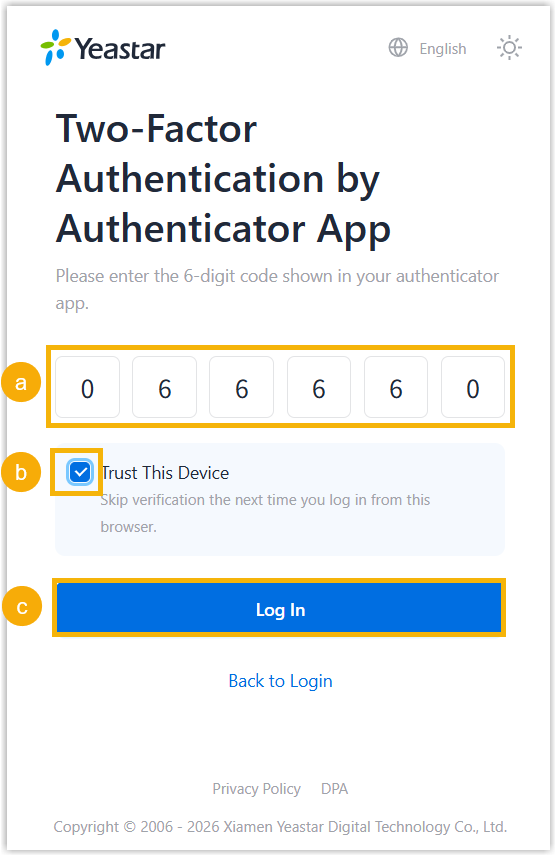
- Enter the authentication code provided by an authenticator application or email.
- Optional: Select the checkbox of
Trusted Device.Note: For the device from which you log in most frequently, you can enable the option to add it as a trusted device. In this way, you don't have to re-enter an authentication code with this device for the next 180 days.
- Click Log In.
- Log in via a domain provided by your service provider
-
- Launch your web browser, visit the domain name of NovoOne Platform portal.
- On the login page, enter your email address and password, then click
Log In.Note: If you forget your login password, reset the password.
- If you have set up Two-Factor Authentication (2FA), you need to
enter an authentication code.
For more information about setting up 2FA, see Two-Factor Authentication (2FA) Overview.
- Enter the authentication code provided by an authenticator application or email.
- Optional: Select the checkbox of
Trusted Device.Note: For the device from which you log in most frequently, you can enable the option to add it as a trusted device. In this way, you don't have to re-enter an authentication code with this device for the next 180 days.
- Click Log In.
Result
You have successfully logged in to NovoOne Platform portal.