View System Prompt
This topic describes the function of system prompts and how to view available prompts.
Background information
System prompts can be applied to NovoOne Tenant to provide instructions for callers. For example, if a password is required for a meeting, callers will be prompted to enter password before they successfully join the meeting.
You can view the available system prompts on NovoOne Platform (Path: ), including the built-in prompt and those uploaded by your service provider. If your required prompt cannot be found on NovoOne Platform, contact your service provider.
Procedure
- Log in to NovoOne Platform portal, go to .
- Filter prompts in the list using one of the following methods.
- At the top-right corner of the prompt list, enter desired language in the search box.
- Click
 beside the Type
column, and select desired prompt type in the drop-down
list.

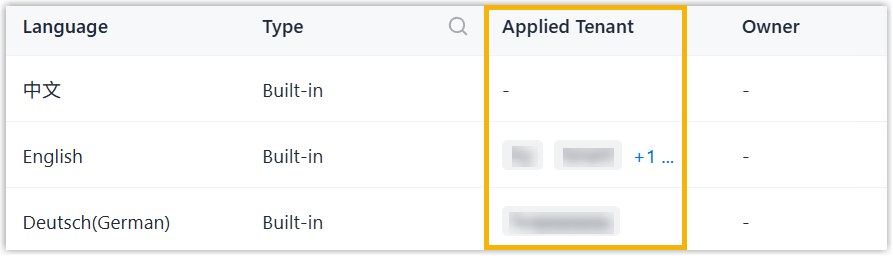
The matched prompts are displayed on the web page, you can check the tenants that currently use this prompt at the Applied Tenant column.
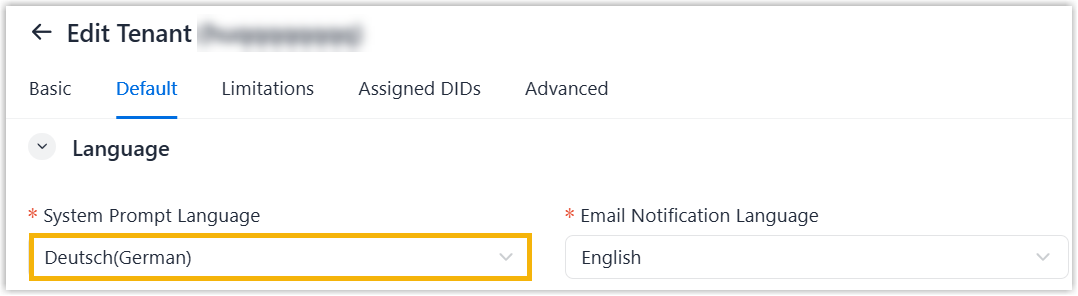
 Note: If you want to modify the prompt language for a tenant, go to Tenant >
 > Default > Language > System Prompt Language, select a desired prompt language from the drop-down
list and click Save.