Check and Manage Voicemails
This topic describes how to check and manage your voicemails on Linkus Mobile Client.
Procedure
- On Linkus Mobile Client,
go to .Note: If there exists unread voicemails, a badge will appear on the Voicemail tab, displaying the number of unread voicemails.
- Optional: At the top-left corner, select a read
status to filter voicemails.
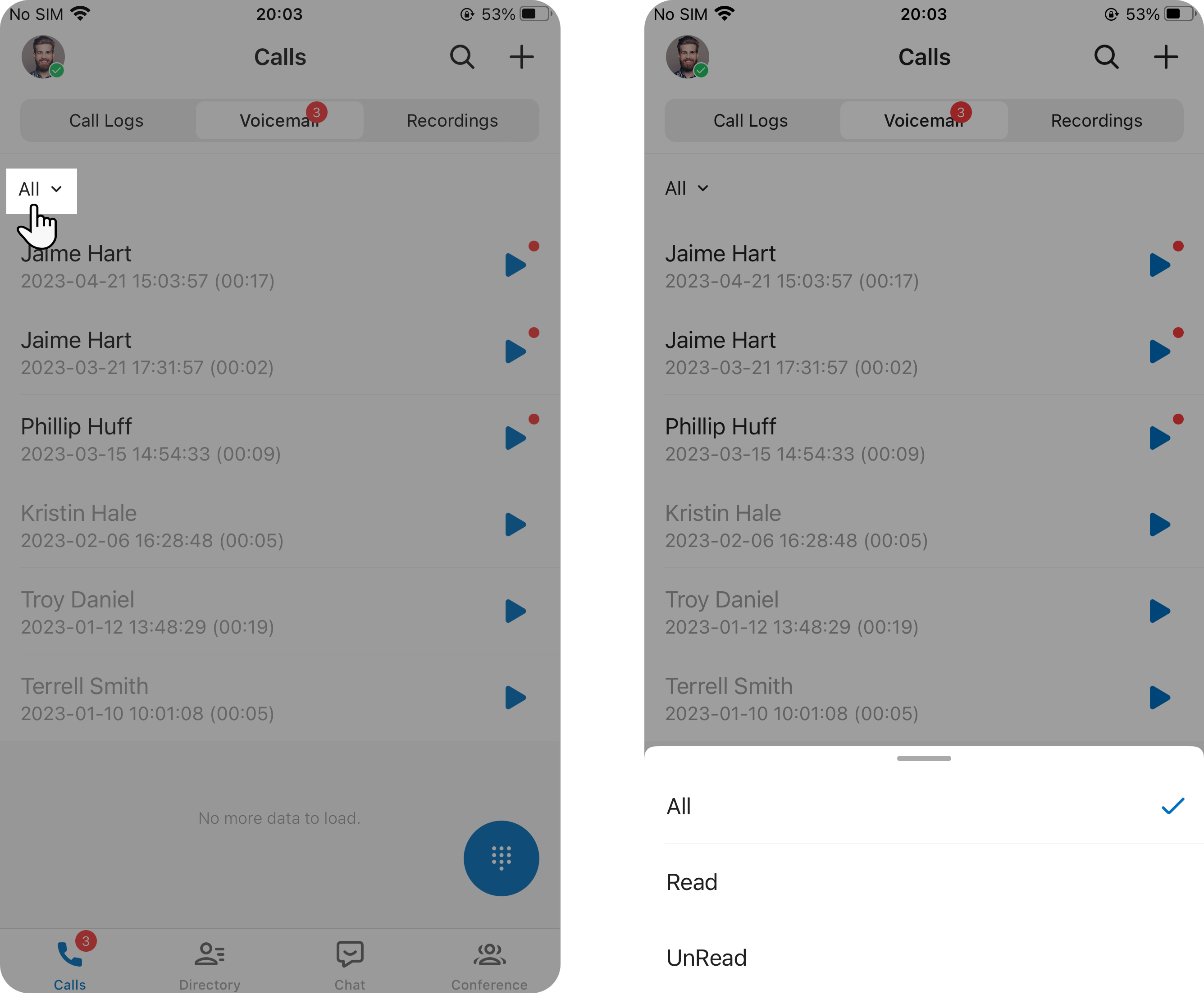
- In the list, check and manage your voicemails.Note:
- Changes to the voicemails will be synchronized to all Linkus UC Clients.
- If the label "Forwarded from: <Extension Name> - <Extension Number>" is displayed below a voicemail, this indicates that the voicemail was forwarded from another extension. Any changes on such voicemails will not affect the original voicemails.
- Play a voicemail
- Tap
 to play the voicemail.
An unread voicemail will be marked as read.
Tip: If it is a group voicemail, you can tap to see whether other group
members have read the voicemail.
to see whether other group
members have read the voicemail. - View and edit a transcript of a voicemail
-
Note: This operation is available only if system administrator has set up voicemail transcription feature on the PBX server and there is sufficient transcription time.
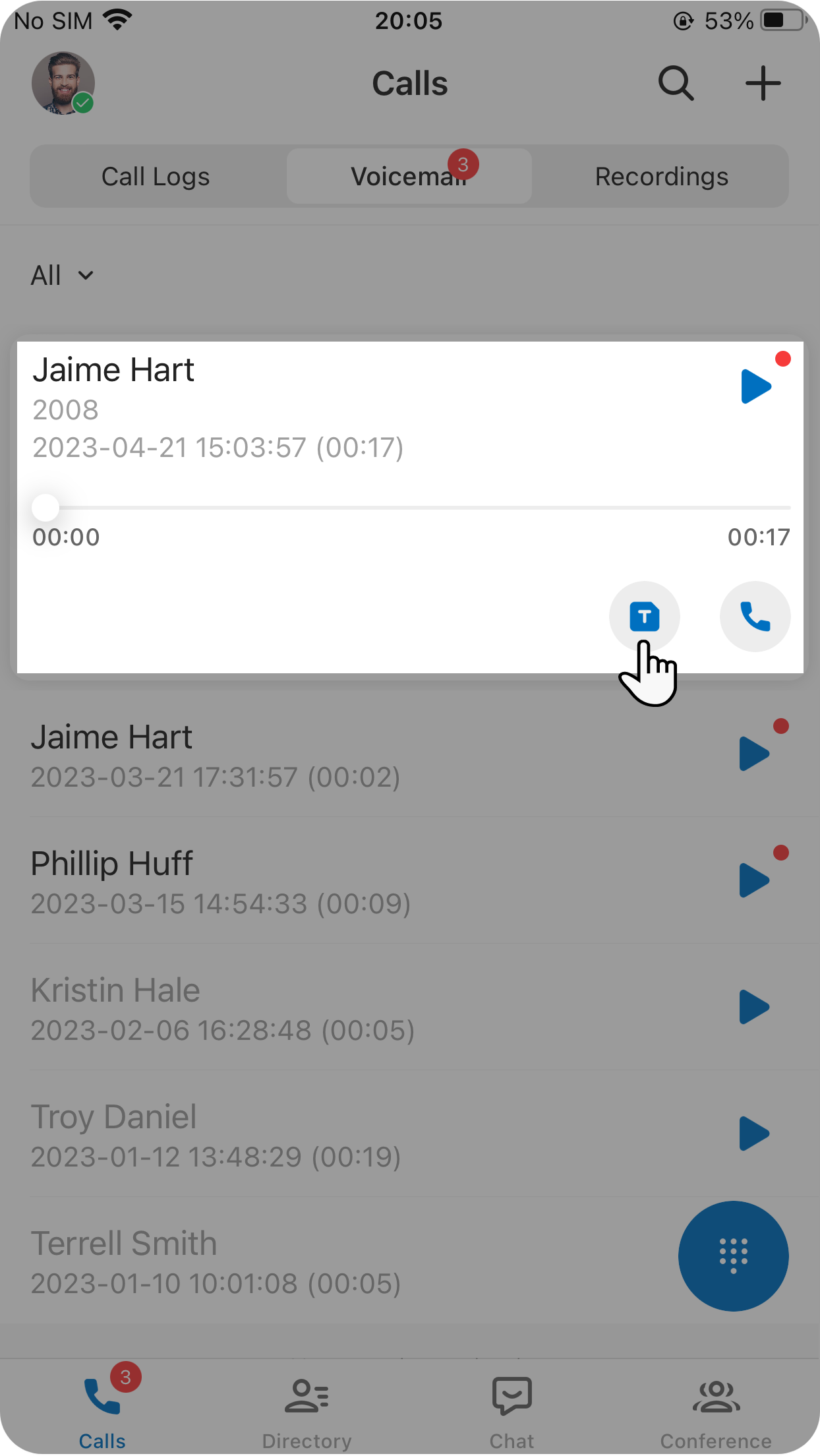
- Tap the desired voicemail.
- In the expanded panel, tap
 .
.The transcribed text is displayed in the text box below the voicemail, and an unread voicemail will be marked as read.
- In the expanded panel, tap
 to edit the transcribed
text.
to edit the transcribed
text. - At the top-right corner, tap Save.
- Change read status of a voicemail
-
- Long press the desired voicemail
- In the pop-up window, tap
Unread or
Read.
The unread voicemail is marked with a red dot (
 ), while the read
voicemail is grayed out.
), while the read
voicemail is grayed out.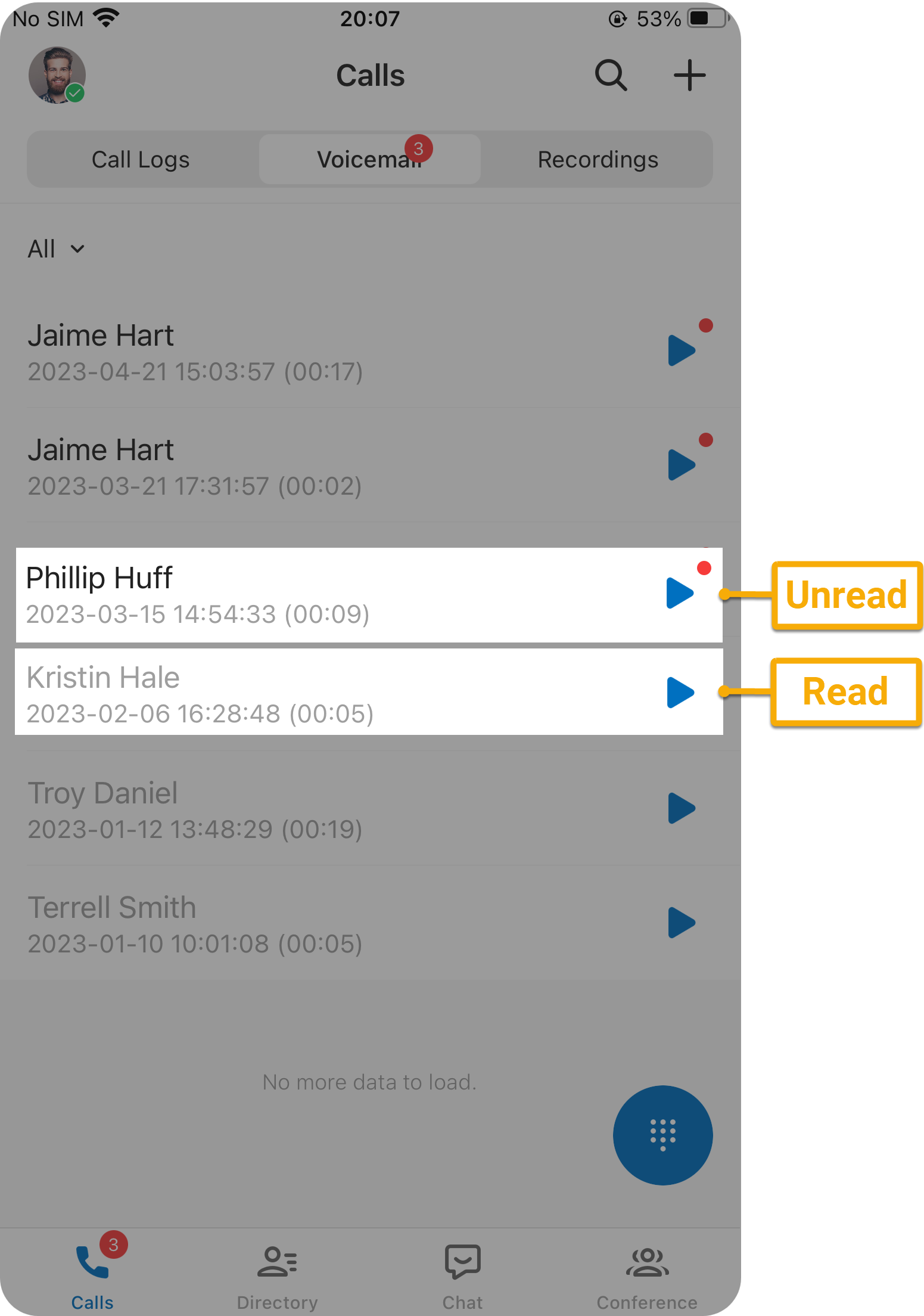
- Forward a voicemail
-
Note: To use this feature, make sure the version of your Linkus Mobile Client meets the following requirements:
- Linkus iOS Client: Version 5.25.15 or later
- Linkus Android Client: Version 5.25.14 or later
- Long press the desired voicemail.
- In the pop-up window, tap Forward.
- In the pop-up extension list, select desired one or more extensions.
- At the bottom, click OK.
A prompt "Voicemail forwarded successfully." appears on the screen. Your original voicemail will still remain in your voicemail list, and you can check and manage it as usual.
- Delete a voicemail
-
- Long press the desired voicemail.
- In the pop-up window, tap Delete.